> For the complete documentation index, see [llms.txt](https://docs.guestway.io/llms.txt). Markdown versions of documentation pages are available by appending `.md` to page URLs; this page is available as [Markdown](https://docs.guestway.io/guest-experience/branding.md).
# Branding
A branding profile sets the company details, colors, logos, emails and domain that guests see for the properties it is assigned to.
{% hint style="info" %}
**Requirements**
* Permission to edit the branding profiles of your organization.
{% endhint %}
## Overview
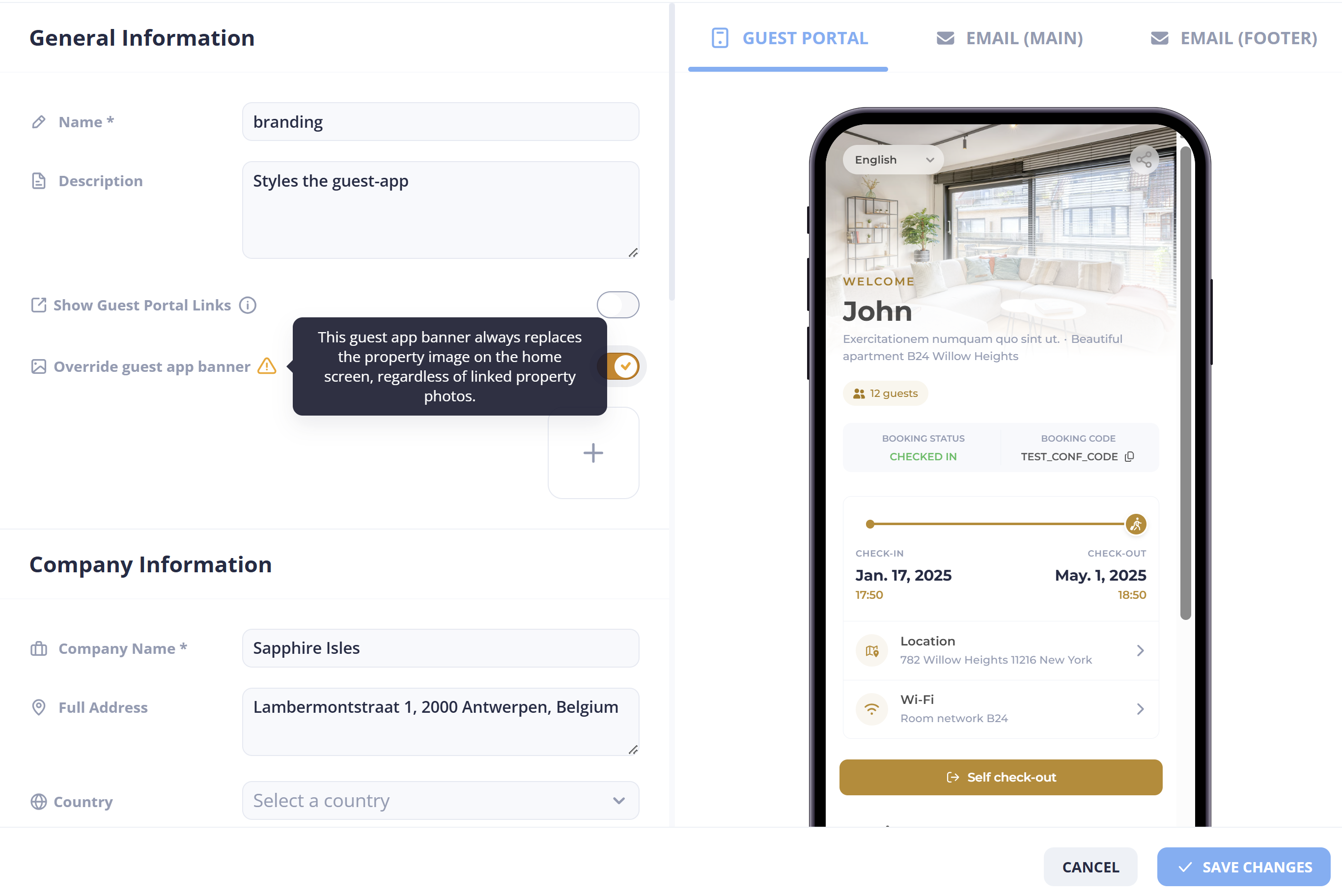
Branding is in **Settings** → **Organization** → **Branding**. A **branding profile** bundles your company details, colors, logos, email signature, email templates and social links into one configuration. The profile applies to:
* **Guest Portal**: the web app guests open during their stay.
* **Main email communications**: system messages sent from Guestway on your behalf.
* **Email footers**: the signature block at the bottom of every outgoing message.
You can create more than one profile and assign each profile to different properties, for example one profile for each brand or sub-brand.
| Action | What it does | Limits |
| ------------------- | ---------------------------------------------------------- | ------------------------------------------------------------------------------------------- |
| **Create branding** | Saves a new profile. | None |
| **Default** | The profile for every property without a specific profile. | A profile with linked listings or multi-units cannot become the default. Unlink them first. |
| Duplicate | Copies the profile, including the banner. | None |
| Delete | Deletes the profile. | None |
The editor has the sections below, from top to bottom.
## General information
| Field | What it does | Limits |
| -------------------------------- | ---------------------------------------------------------------------------------------------------------------------- | --------------------------------------------------------------------------------- |
| **Name** | The name of the profile. | Required |
| **Description** | A note for your team, to tell profiles apart. Guests do not see it. | Optional |
| **Show Guest Portal Links** | Shows or hides the link to the Guest Portal in your emails to guests. | None |
| **Override guest portal banner** | Replaces the property image on the Guest Portal home screen with your own **Banner image**, for all linked properties. | The banner always replaces the property image, also when the property has photos. |
The banner can be replaced at any time with a new file. The banner crops differently on phones and on desktops, so text in the image can be cut off on small screens.
## Company information
Guests see these details in the Guest Portal and in your emails. All fields are required.
| Field | What it does |
| ----------------- | ----------------------------------------------------------------------- |
| **Company Name** | The name of your company. |
| **Full Address** | The address of your company. |
| **Country** | The country of your company. |
| **Website URL** | Your website. |
| **Contact Phone** | The phone number guests call from the contact page of the Guest Portal. |
| **Contact Email** | The email address guests can write to. |
## Brand colors
| Field | What it does | Limits |
| ------------------- | -------------------------------------------------------- | --------------------------------------- |
| **Primary Color** | The main color of the Guest Portal and of your emails. | Required. A color code such as #RRGGBB. |
| **Secondary Color** | The second color of the Guest Portal and of your emails. | Required. A color code such as #RRGGBB. |
## Brand logos
| Field | What it does |
| ------------------- | ------------------------------------------------------------------------- |
| **Main Logo** | Your logo, used across the Guest Portal and your emails. |
| **Horizontal Logo** | A wide version of your logo, for places where the main logo does not fit. |
## Footer information
| Field | What it does |
| ------------- | ------------------------------------------------------------------------------------- |
| **Signature** | A short text in the footer of the Guest Portal and of every email sent from Guestway. |
## Custom email templates
Replace the default Guestway email layout with your own HTML. Each template has its own card. A card shows **Custom** when your own HTML is used, and **Default** when the Guestway layout is used.
| Template | What it does | Limits |
| ---------------------- | --------------------------------------------------------------------------------------------------------- | ----------------------------------------------------------------------------------------------------------------- |
| **Reservation emails** | The layout of emails tied to a reservation. You see it in the **Email - reservation** tab of the preview. | Must contain `{{messageBody}}` at least once. At most 60,000 characters. |
| **Inquiry emails** | The layout of emails without a reservation. You see it in the **Email - inquiry** tab of the preview. | Must contain `{{messageBody}}` at least once. At most 60,000 characters. Reservation variables are not available. |
`{{messageBody}}` is where Guestway puts the message itself. You can also use variables, for example guest, reservation and property details. Guestway fills them in when it sends the email.
## Social media links
Optional. Links to your social media accounts. Guests can open them from the Guest Portal and your emails.
## Receiving email
| Field | What it does | Limits |
| ------------------- | --------------------------------------------------------- | ----------------------------------------------------------------------------------- |
| **Receiving Email** | The preferred email address for guests to send emails to. | You choose from the email addresses of your [Inbox](/inbox-and-messaging/inbox.md). |
## Custom domain
| Field | What it does | Limits |
| ----------------- | ------------------------------------------------------------------ | ------------------------------------------------------------------------------------------------------------------------------------------------------------------------------ |
| **Custom Domain** | The domain of the Guest Portal for the properties of this profile. | You choose from the portal domains of your organization. Without one, **Guestway default** is used. When a custom domain is no longer available, **Guestway default** is used. |
## Properties
Choose the **Listings** and **Multi-Units** that use this profile.
## Related
* [How to create a branding profile](/guest-experience/branding/how-to-create-a-branding-profile.md)
* [How to use a custom HTML email template](/guest-experience/branding/how-to-use-a-custom-html-email-template.md)
* [Guest journey](/guest-experience/guest-journey.md): protection needs a default branding with company name and contact email.
* [Domains](/inbox-and-messaging/domains.md): set up your domain so that your emails are branded too.
* [Guest portal](/guest-experience/guest-portal.md): where guests see your branding.
---
# Agent Instructions
This documentation is published with GitBook. GitBook is the documentation platform designed so that both humans and AI agents can read, navigate, and reason over technical content effectively. Learn more at gitbook.com.
## Querying This Documentation
If you need additional information that is not directly available in this page, you can query the documentation by asking a question.
Perform an HTTP GET request on the following URL with the `ask` and `goal` query parameters:
```
GET https://docs.guestway.io/guest-experience/branding.md?ask=&goal=
```
`ask` is the immediate question: it should be specific, self-contained, and written in natural language.
`goal` is what the user is ultimately trying to achieve, the reason they need the answer. Sharing it helps GitBook give you a better, more relevant answer. A goal is most helpful when it describes the outcome the user wants rather than restating the question. For example, with `ask=how do I create an API token`, a goal like `automate deployments from our CI pipeline` lets GitBook tailor the answer to that use case.
The response will contain a direct answer to the question and relevant excerpts and sources from the documentation.
Use this mechanism when the answer is not explicitly present in the current page, you need clarification or additional context, or you want to retrieve related documentation sections.