> For the complete documentation index, see [llms.txt](https://docs.guestway.io/llms.txt). Markdown versions of documentation pages are available by appending `.md` to page URLs; this page is available as [Markdown](https://docs.guestway.io/integrations/whatsapp/connect-your-existing-whatsapp-business-app.md).

# Connect your existing WhatsApp Business App

If your business already uses the WhatsApp Business App on a phone, you can connect that same number to Guestway **without losing access to the app**. This feature is called **WhatsApp Coexistence**.

With Coexistence, your existing WhatsApp Business App number becomes connected to the WhatsApp Cloud API (which powers Guestway). You can continue chatting with guests directly from your phone, while also benefiting from Guestway's unified inbox, automated messaging, and team collaboration features.

{% hint style="info" %}
**When should I use this option?**\
Use this if you already have an active WhatsApp Business App number with existing guest conversations and contacts, and you do not want to lose that history or stop using the app.\
\
If you prefer to use a new number or fully migrate an existing number to API-only, see [Meta setup & Guestway integration](https://docs.guestway.io/integrations/whatsapp-1/meta-setup-and-guestway-integration) instead.
{% endhint %}

***

### Before you start

Make sure you have the following ready:

* **WhatsApp Business App version 2.24.17 or higher** installed on the primary phone
* **Phone number from a supported country** (see Supported countries section below)
* **Phone number actively used** on the WhatsApp Business App for at least 7 days
* **A Meta Business Portfolio** (you can create one during setup if needed)
* **Access to the primary phone** during setup — you will need to scan a QR code
* **A credit card** for WhatsApp API messaging billing
* **Admin permissions** inside your Guestway organization

***

### Important things to know before connecting

**Your WhatsApp Business App can only be connected to one Cloud API provider at a time.** If your number is already connected to another platform (for example another guest messaging tool, a CRM, or a marketing tool that uses WhatsApp API), you must disconnect from that provider first before connecting to Guestway.

**All companion devices will be disconnected.** When you connect to Guestway, any linked devices (other phones, WhatsApp Web sessions, WhatsApp for Mac) will be automatically unlinked from the account. You **must initiate the connection from the primary phone** where the WhatsApp Business App was originally set up. After successfully connecting to Guestway, you can re-link supported companion apps. Note that WhatsApp for Windows and WhatsApp for WearOS are **not supported** in Coexistence mode and should not be used.

***

### Supported countries

WhatsApp Coexistence is available globally. The only countries where it is **not** supported are:

* Nigeria
* South Africa

If your phone number has a country code from one of these countries, you will not be able to use Coexistence. You can still connect to Guestway using a new number or by fully migrating your existing number.

{% hint style="info" %}
Meta may update this list over time. If you run into eligibility issues, check Meta's official Coexistence documentation for the latest information.
{% endhint %}

***

### Step-by-step setup

The setup involves actions on both your computer (in the Guestway platform) and your phone (in the WhatsApp Business App). Follow each step carefully.

***

#### Part 1 — Start the connection in Guestway (on your computer)

**Step 1. Open the WhatsApp integration**

In Guestway, go to **Settings → Integrations → Create → WhatsApp**.

This will open the Meta Embedded Signup window.

**Step 2. Select your Business Portfolio**

Log in using the Facebook account that manages your Meta Business Portfolio.

Select your Business Portfolio from the dropdown. Under WhatsApp Business account, choose **"Connect a WhatsApp Business app"**.

<figure><img src="https://3944456244-files.gitbook.io/~/files/v0/b/gitbook-x-prod.appspot.com/o/spaces%2FBrW4TrHoVgRLXkGBzLVy%2Fuploads%2FLjmo98KXGCF6EdVsVDGC%2Funknown.jpeg?alt=media&#x26;token=9577ab5b-e619-470b-a2ab-3590a5bc2076" alt=""><figcaption><p>Select your Business Portfolio and choose to connect an existing WhatsApp Business App</p></figcaption></figure>

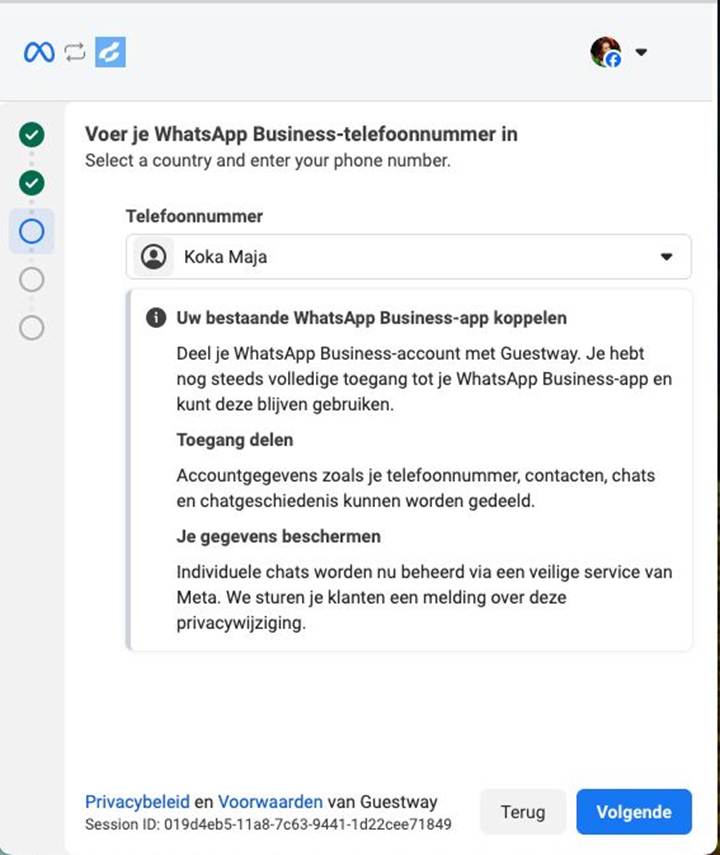
**Step 3. Enter your phone number**

Enter the phone number that is currently active on your WhatsApp Business App. Select the correct country code.

<figure><img src="https://3944456244-files.gitbook.io/~/files/v0/b/gitbook-x-prod.appspot.com/o/spaces%2FBrW4TrHoVgRLXkGBzLVy%2Fuploads%2FKCqk1509UCUT1C5BSgFj%2Funknown.jpeg?alt=media&#x26;token=4f151fd4-ba8a-4958-a0cd-c7ab4e71ee94" alt=""><figcaption><p>Enter your existing WhatsApp Business App phone number</p></figcaption></figure>

**Step 4. Confirm the connection details**

Meta will recognize your number as an active WhatsApp Business App account. You will see a summary of what will be shared with Guestway, including your phone number, contacts, chats, and chat history.

A notification will be sent to your customers informing them that chats are now managed via a secure service from Meta.

<figure><img src="https://3944456244-files.gitbook.io/~/files/v0/b/gitbook-x-prod.appspot.com/o/spaces%2FBrW4TrHoVgRLXkGBzLVy%2Fuploads%2FuCxZijgCh2g3dfAq857O%2Funknown.jpeg?alt=media&#x26;token=43aeb47e-bc49-4a92-b3ad-d2c2b2807a85" alt=""><figcaption><p>Confirmation screen showing what will be shared with Guestway</p></figcaption></figure>

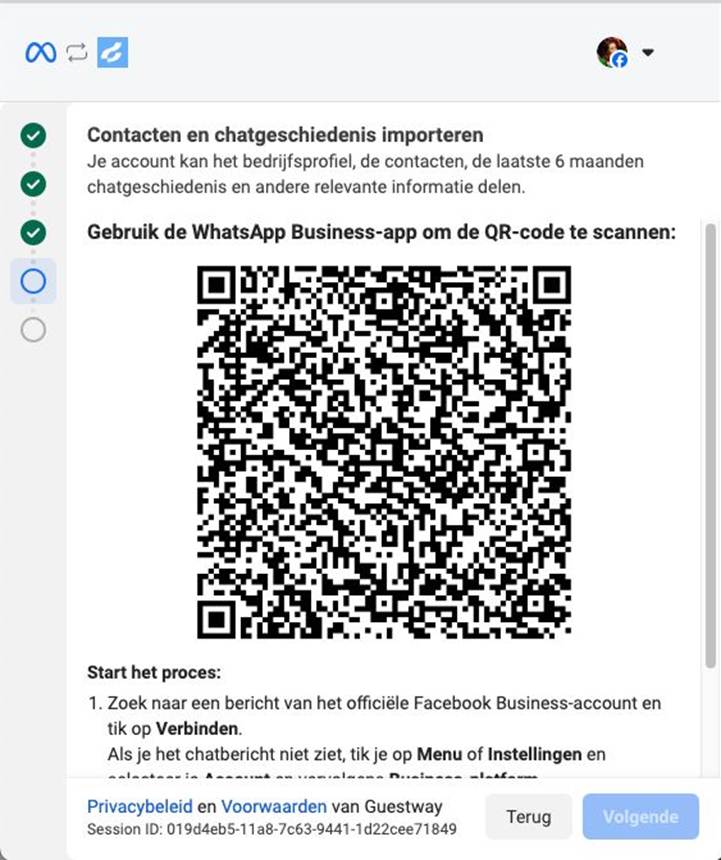
**Step 5. Scan the QR code**

A QR code will appear on screen. Keep this screen open — you will need to scan it from your phone in the next part.

<figure><img src="https://3944456244-files.gitbook.io/~/files/v0/b/gitbook-x-prod.appspot.com/o/spaces%2FBrW4TrHoVgRLXkGBzLVy%2Fuploads%2Fj55rthzZFQj6K4CiSTBe%2Funknown.jpeg?alt=media&#x26;token=e2154133-d34a-4057-848b-fa92a69c2c9e" alt=""><figcaption><p>QR code displayed on screen to scan from the WhatsApp Business App</p></figcaption></figure>

***

#### Part 2 — Connect from your phone (in the WhatsApp Business App)

{% hint style="info" %}

#### **Important:** these steps must be performed on the **primary phone** where the WhatsApp Business App is installed. Do not use a companion or linked device.

{% endhint %}

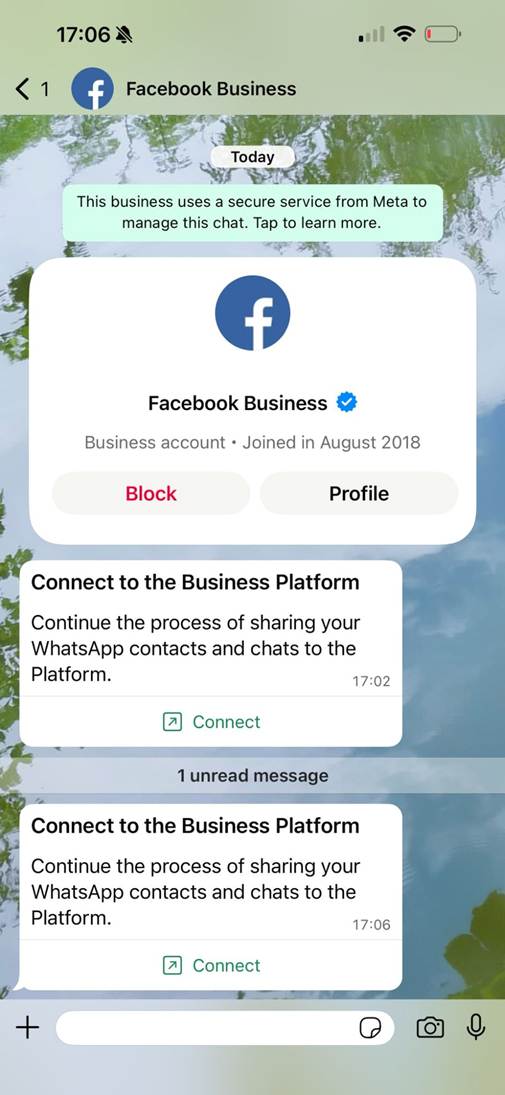
#### Step 6. Open the message from Facebook Business

In your WhatsApp Business App, you will receive a message from the official Facebook Business account. This message contains a **"Connect"** button. Tap it.

<figure><img src="https://3944456244-files.gitbook.io/~/files/v0/b/gitbook-x-prod.appspot.com/o/spaces%2FBrW4TrHoVgRLXkGBzLVy%2Fuploads%2F48sERrwJ5ZRMWHEHs0vk%2Funknown.jpeg?alt=media&#x26;token=9aad18e2-aa57-4d32-8dcb-7218c0a0f0a2" alt=""><figcaption><p>Message from Facebook Business with the Connect to the Business Platform button</p></figcaption></figure>

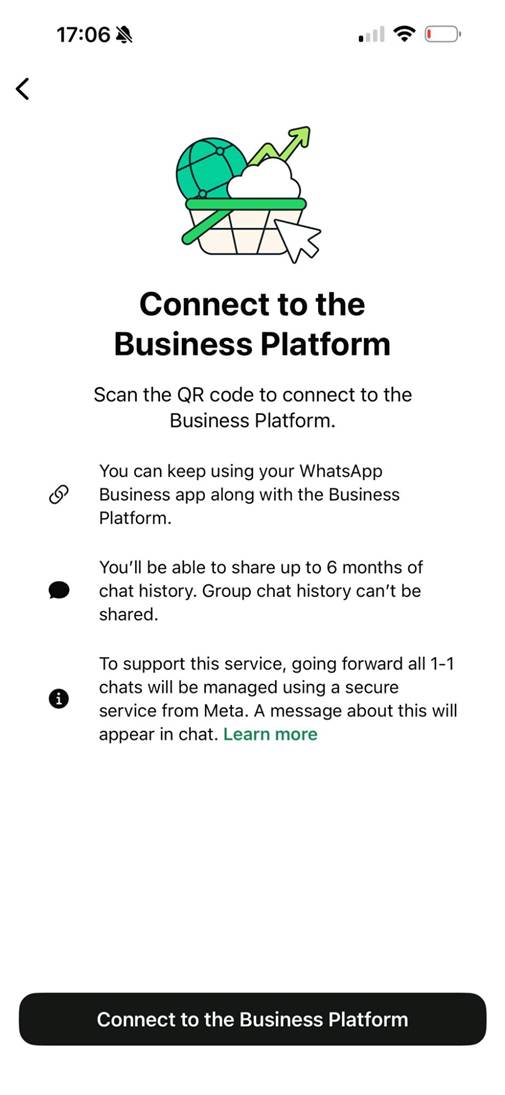
**Step 7. Review the connection information**

You will see an overview explaining what Coexistence means: you can keep using your WhatsApp Business App, up to 6 months of chat history can be shared, and all future 1:1 chats will be managed via a secure service from Meta.

Tap **"Connect to the Business Platform"** to continue.

<figure><img src="https://3944456244-files.gitbook.io/~/files/v0/b/gitbook-x-prod.appspot.com/o/spaces%2FBrW4TrHoVgRLXkGBzLVy%2Fuploads%2F9xb5yASnLrSDiTwUf1tU%2Funknown.jpeg?alt=media&#x26;token=5acd4b9b-2de9-4d31-9e2a-4bce049bf926" alt=""><figcaption><p>Connect to the Business Platform information screen</p></figcaption></figure>

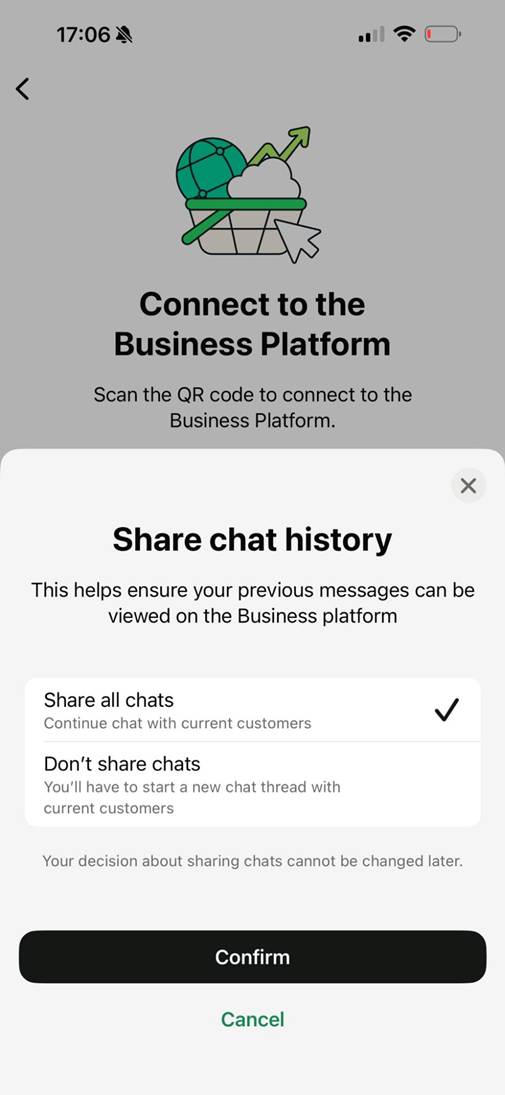
**Step 8. Choose whether to share chat history**

You will be asked whether to share your existing chat history with Guestway.

* **Share all chats** — Recommended. Imports up to 6 months of your 1:1 conversation history into Guestway so you can continue conversations with existing guests.
* **Don't share chats** — You will start fresh in Guestway. Existing conversations will remain only in the WhatsApp Business App.

{% hint style="info" %}
**This decision is permanent and cannot be changed later.** If you skip sharing and change your mind, you would need to disconnect and reconnect from scratch.
{% endhint %}

<figure><img src="https://3944456244-files.gitbook.io/~/files/v0/b/gitbook-x-prod.appspot.com/o/spaces%2FBrW4TrHoVgRLXkGBzLVy%2Fuploads%2FZHEENw9VukMW1KJmf8Mu%2Funknown.jpeg?alt=media&#x26;token=731e787c-27ec-47f7-8537-adb7607b1868" alt=""><figcaption><p>Choose to share all chats or start fresh</p></figcaption></figure>

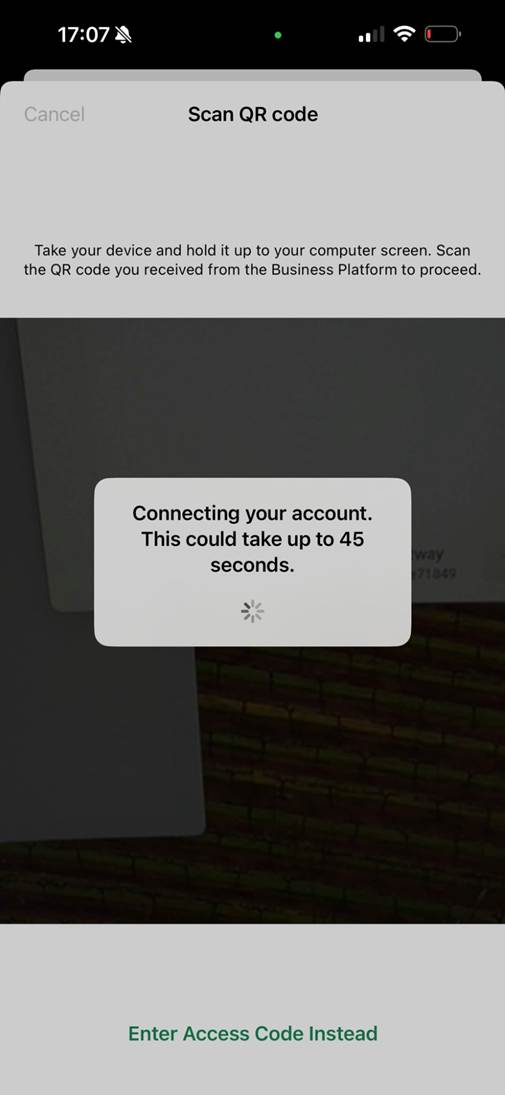
**Step 9. Scan the QR code**

Your phone will open the camera to scan the QR code displayed on your computer screen (from Step 5). Point your phone at the screen.

The connection process will take up to 45 seconds.

<figure><img src="https://3944456244-files.gitbook.io/~/files/v0/b/gitbook-x-prod.appspot.com/o/spaces%2FBrW4TrHoVgRLXkGBzLVy%2Fuploads%2FCeRMcnvqGgow3WE7gBTA%2Funknown.jpeg?alt=media&#x26;token=6ef49a96-5eaa-42f5-9309-7b75e5bdc615" alt=""><figcaption><p>Scanning the QR code and connecting your account</p></figcaption></figure>

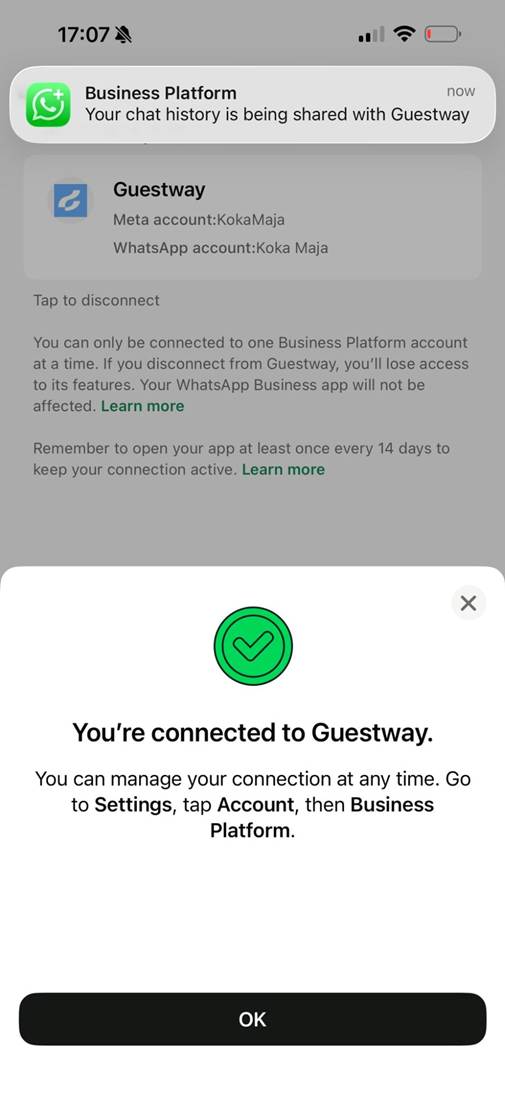
**Step 10. Connection confirmed on your phone**

You will see a success message: **"You're connected to Guestway."**

You can manage this connection at any time by going to **Settings → Account → Business Platform** in your WhatsApp Business App.

<figure><img src="https://3944456244-files.gitbook.io/~/files/v0/b/gitbook-x-prod.appspot.com/o/spaces%2FBrW4TrHoVgRLXkGBzLVy%2Fuploads%2Fv2cE0ATs3CUq0YW2QK2R%2Funknown.jpeg?alt=media&#x26;token=42940cdf-1422-466c-ab69-c688f9b9a0ba" alt=""><figcaption><p>Success screen — you're connected to Guestway</p></figcaption></figure>

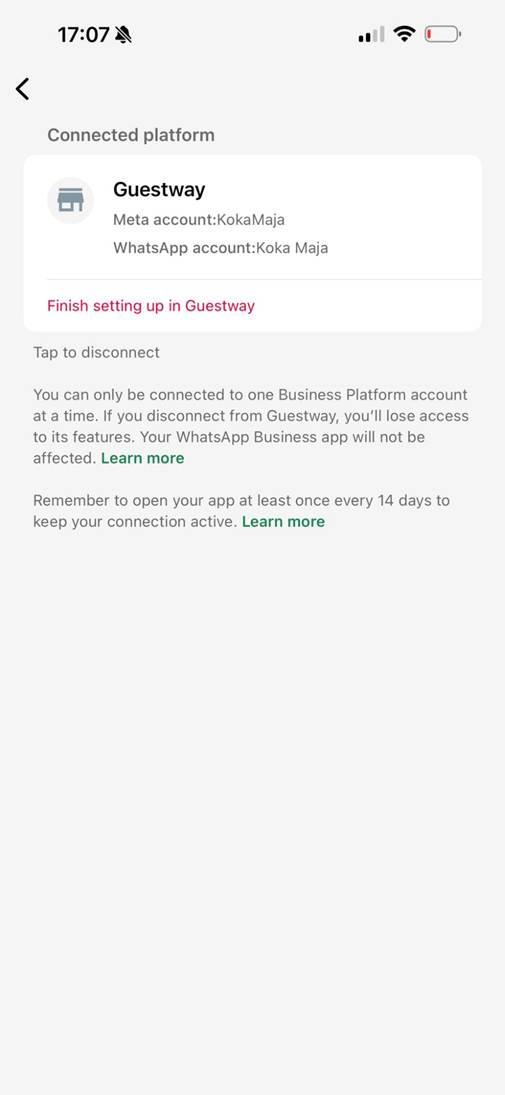
After confirming, Guestway will appear as a connected platform in your WhatsApp Business App settings.

<figure><img src="https://3944456244-files.gitbook.io/~/files/v0/b/gitbook-x-prod.appspot.com/o/spaces%2FBrW4TrHoVgRLXkGBzLVy%2Fuploads%2FJdiViAjPtaxhS5n7ssXC%2Funknown.jpeg?alt=media&#x26;token=ed46404c-b9ad-4131-9e36-38747f53a9e8" alt=""><figcaption><p>Connected platform settings showing Guestway</p></figcaption></figure>

***

#### Part 3 — Finalize the connection (back on your computer)

**Step 11. Review and confirm permissions**

Back on your computer, the Meta flow will continue. You will see a permissions review screen showing what Guestway will have access to: managing your WhatsApp accounts, managing and opening conversations, and logging events.

Click **"Confirm"** to grant these permissions.

<figure><img src="https://3944456244-files.gitbook.io/~/files/v0/b/gitbook-x-prod.appspot.com/o/spaces%2FBrW4TrHoVgRLXkGBzLVy%2Fuploads%2FU1ZyBnRJcIeTamr3TlkC%2Funknown.jpeg?alt=media&#x26;token=697ab47d-c99b-4048-ade4-887f416be4aa" alt=""><figcaption><p>Permissions review screen showing what Guestway will have access to</p></figcaption></figure>

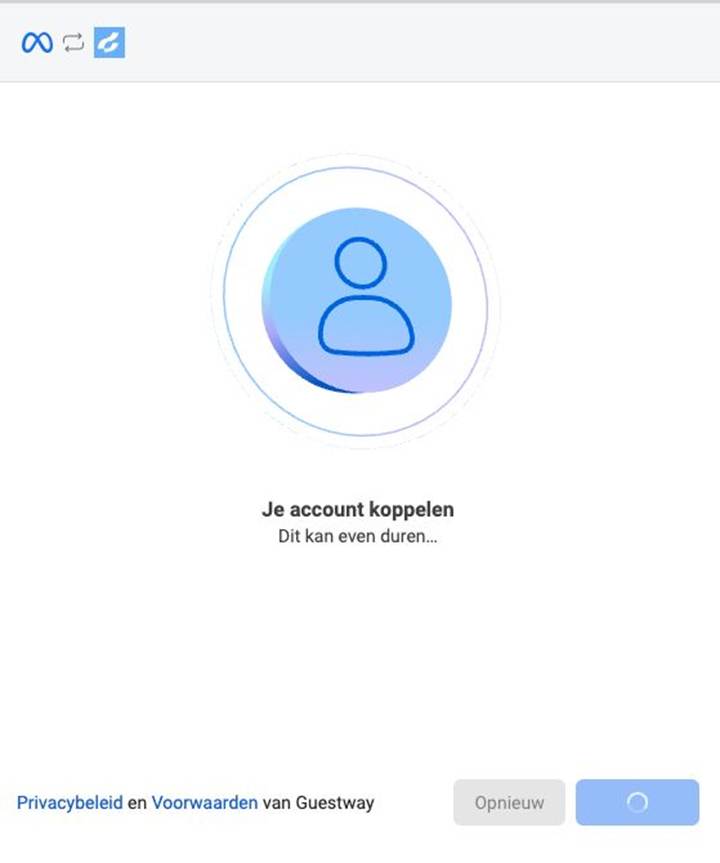
**Step 12. Account linking**

The system will link your account. This may take a few moments.

<figure><img src="https://3944456244-files.gitbook.io/~/files/v0/b/gitbook-x-prod.appspot.com/o/spaces%2FBrW4TrHoVgRLXkGBzLVy%2Fuploads%2FgSJE3XlxCIJe2zQfJKIb%2Funknown.jpeg?alt=media&#x26;token=048ebeb1-6af7-416c-92af-134a30d1774b" alt=""><figcaption><p>Account linking in progress</p></figcaption></figure>

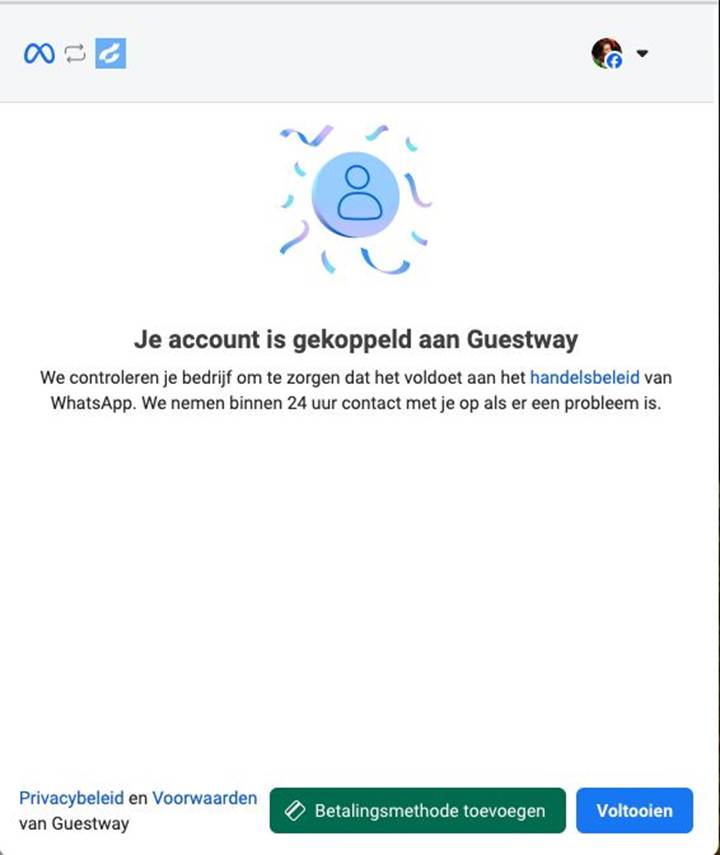
**Step 13. Setup complete**

You will see a confirmation that your account is linked to Guestway.

<figure><img src="https://3944456244-files.gitbook.io/~/files/v0/b/gitbook-x-prod.appspot.com/o/spaces%2FBrW4TrHoVgRLXkGBzLVy%2Fuploads%2FxMAnNhzAM9pFpkp7yVev%2Funknown.jpeg?alt=media&#x26;token=7ca56159-4654-4541-99c0-37952c05ad47" alt=""><figcaption><p>Account successfully linked to Guestway</p></figcaption></figure>

***

#### Part 4 — Configure billing (required)

{% hint style="info" %}

#### **This step is mandatory.** Without a payment method, Guestway will not be able to send messages via the WhatsApp API on your behalf. On the final screen, click **"Add payment method"** to add a credit card.

{% endhint %}

You can also configure billing later inside your Meta Business Manager under **WhatsApp Business Account → Payment settings**.

Messages you send from the WhatsApp Business App remain **free**. Messages sent through Guestway (via the Cloud API) are charged according to Meta's standard pricing.

***

#### Part 5 — Verify everything works

After completing the setup, go to **Settings → Integrations** in Guestway. Your WhatsApp number should now appear as a connected integration.

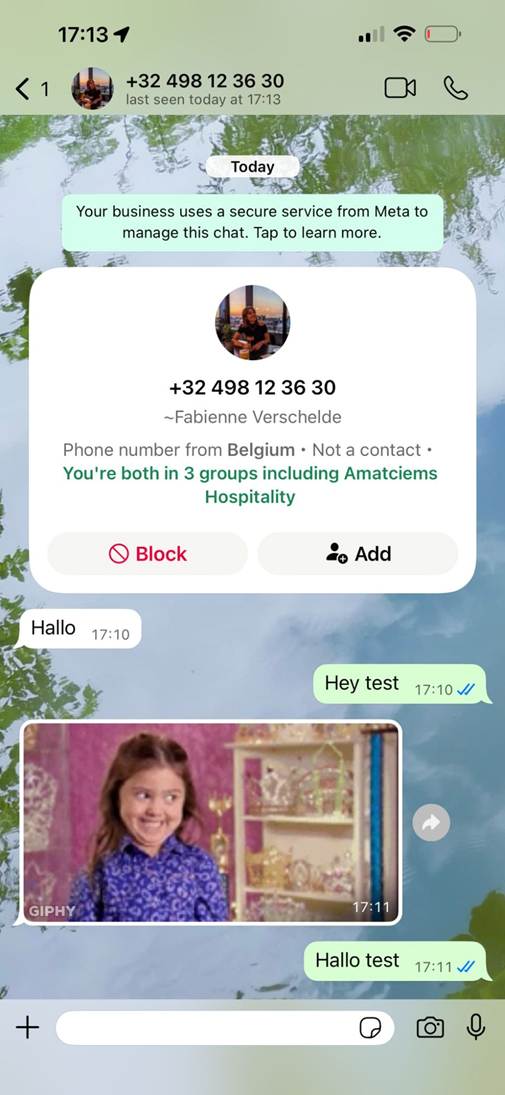
Send a test message from a personal WhatsApp number to your business number. The message should appear in your Guestway Inbox.

<figure><img src="https://3944456244-files.gitbook.io/~/files/v0/b/gitbook-x-prod.appspot.com/o/spaces%2FBrW4TrHoVgRLXkGBzLVy%2Fuploads%2Fhdt9vlLrSDhp7JaVwXLo%2Funknown.jpeg?alt=media&#x26;token=e09da76-3e87-4998-be59-1e8e6ad5c6c0" alt=""><figcaption><p>Test message appearing in the WhatsApp Business App</p></figcaption></figure>

<figure><img src="/files/zHhLkb4wbVHWZuwCPekm" alt=""><figcaption><p>The same conversation synced and visible in the Guestway Inbox</p></figcaption></figure>

You can now reply to guests from either the WhatsApp Business App on your phone or from the Guestway Inbox. Messages are synced between both platforms.

***

### Limitations when using Coexistence

When Coexistence is active, a few WhatsApp Business App features are disabled or changed:

* **Disappearing messages** are turned off for all 1:1 chats
* **View once messages** are disabled
* **Live location sharing** is disabled in 1:1 chats
* **Broadcast lists** are disabled — existing lists become read-only, new ones cannot be created
* **Group chats** are not synced to Guestway (they continue to work normally in the app)
* **Message throughput** is capped at 20 messages per second to maintain compatibility between the app and the API
* **You must open the WhatsApp Business App at least once every 14 days** to keep the connection active

Voice and video calls, catalogs, WhatsApp Status, and other business tools continue to work normally in the app.

***

### How to disconnect

To stop using Coexistence and return to using only the WhatsApp Business App:

1. Open the **WhatsApp Business App** on your phone.
2. Go to **Settings → Account → Business Platform**.
3. Tap **"Disconnect"**.

After disconnecting, all disabled features (broadcast lists, disappearing messages, etc.) will be re-enabled and your WhatsApp Business App will continue working as before.

{% hint style="info" %}
**Do not uninstall the WhatsApp Business App to disconnect.** Uninstalling instead of using the disconnect option may cause issues when trying to reconnect later.
{% endhint %}

***

#### Related pages

* Meta setup & Guestway integration — connect a new number or fully migrate an existing one.
* Using WhatsApp in Guestway — how to start conversations, use templates, and reply to guests.


---

# Agent Instructions
This documentation is published with GitBook. GitBook is the documentation platform designed so that both humans and AI agents can read, navigate, and reason over technical content effectively. Learn more at gitbook.com.

## Querying This Documentation
If you need additional information that is not directly available in this page, you can query the documentation dynamically by asking a question.

Perform an HTTP GET request on the current page URL with the `ask` query parameter, and the optional `goal` query parameter:

```
GET https://docs.guestway.io/integrations/whatsapp/connect-your-existing-whatsapp-business-app.md?ask=<question>&goal=<endgoal>
```

`ask` is the immediate question: it should be specific, self-contained, and written in natural language.
`goal` is optional and describes the broader end goal you are ultimately trying to accomplish on behalf of the user. GitBook uses it to tailor the answer towards what is most useful for that goal.

The response will contain a direct answer to the question and relevant excerpts and sources from the documentation.

Use this mechanism when the answer is not explicitly present in the current page, you need clarification or additional context, or you want to retrieve related documentation sections.