
Unified AI inbox
The Unified AI inbox shows the guest conversations of every channel in one list, with the reply form and the reservation details next to them.
Layout
Inbox in the left sidebar opens the inbox. It has three columns.
Conversation list
All conversations of your account, with the quick filters, search and filters.
Conversation
The messages of the selected conversation and the reply form.
Reservation details panel
The reservation, listing, guests, access, operations and charges. See Reservation details panel.
The broadcast icon (Configure broadcasts) at the top of the conversation list opens Broadcasts.
Conversation list
The top of the list shows the view menu (Inbox by default) with the number of conversations. See Saved views. The list is sorted by the latest message.
Quick filters
Assigned to me
Only the conversations assigned to you.
Needs a reply
The conversations that wait for a reply.
Flagged
The conversations flagged for special attention.
While a quick filter is on, Sort messages shows next to the buttons, with Sort by latest message and Sort by urgency. Sort by urgency puts the most urgent conversations first, then the latest. The badges Critical urgency and High urgency on a conversation are assessed by AI from the latest guest messages.

Search
The search field (Search guests or booking codes…) finds conversations by guest name, booker name, booking code and phone number. A name search also finds the conversations of reservations that the person booked for other guests. Ctrl+F (Cmd+F on a Mac) jumps to the field. The search starts after two characters. While you search, the quick filters and the other filters are off.
List menu
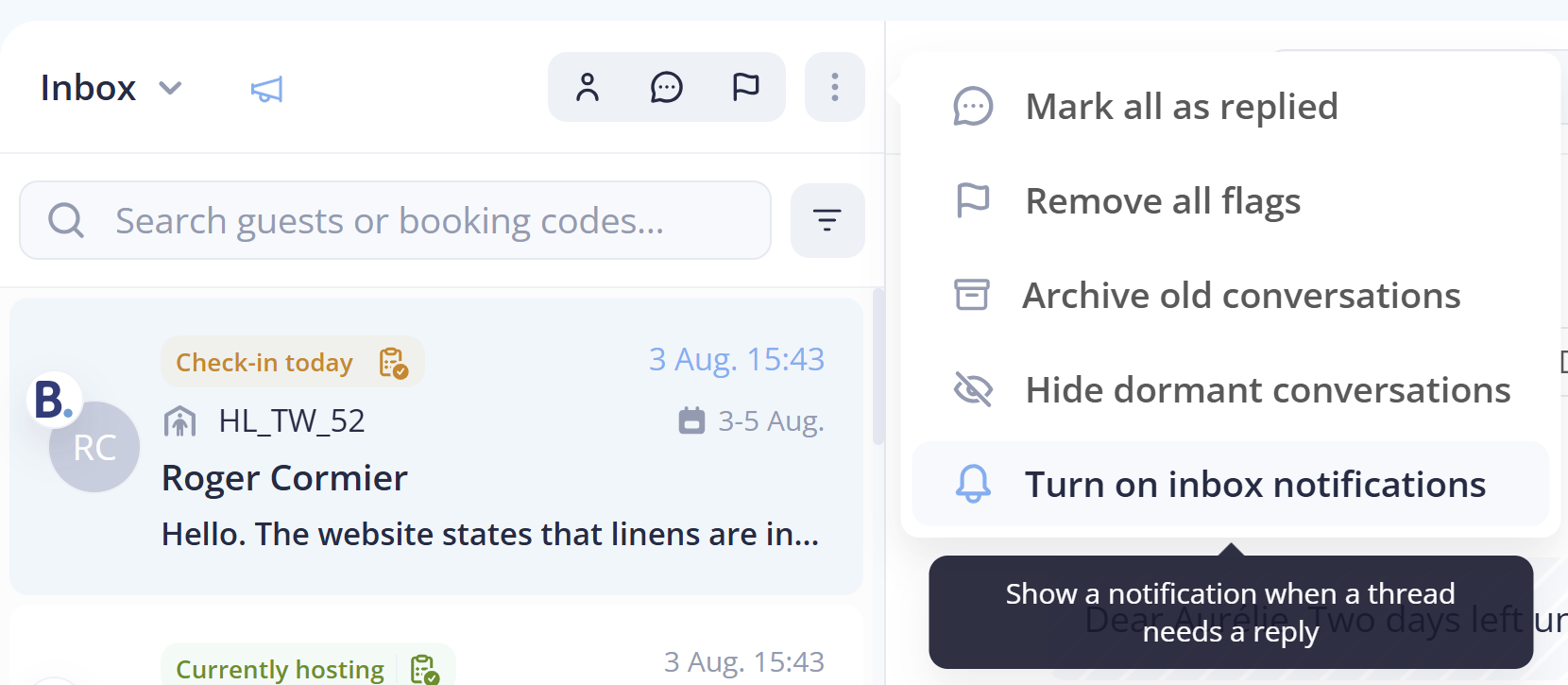
The ⋮ icon next to the quick filters opens these actions.
Mark all as replied
Removes Needs a reply from every conversation. Future conversations are not affected.
You cannot undo it.
Remove all flags
Removes the flag from every conversation.
You cannot undo it.
Archive old conversations
Archives every conversation that is at least one day past check-out.
You cannot undo it.
Show all conversations / Hide dormant conversations
Shows or hides empty conversations, with no messages.
None
Turn on inbox notifications / Turn off inbox notifications
Shows a browser notification when a conversation needs a reply.
For each browser. The browser must allow notifications.
Conversation row
A row shows icons for Flagged, Archived, Muted and a reminder. Hover a row and click ⋯ for Mark as replied or Needs a reply, Flag chat or Remove flag, Archive or Unarchive, and View in [PMS].
Filters
The filter icon next to the search field opens the filters. A badge shows how many filters are on. Filter adds a filter. All filters can be combined.
Organization
The organization. Only in a hub.
Assigned to
The team member the conversation is assigned to.
Listing
A listing.
Listing nickname
The nickname of the listing.
Listing custom field
A custom field of the listing.
Multi-Unit
A multi-unit.
Multi-Unit nickname
The nickname of the multi-unit.
Multi-unit custom field
A custom field of the multi-unit.
Complex
A building or a compound.
Complex custom field
A custom field of the complex.
Guest
A guest.
Guest name
The name of the guest.
Guest Email
The email address of the guest.
Guest Phone
The phone number of the guest.
New guest
Guests created from a message that matched no reservation.
New guest source
The channel the message of a new guest came from, for example email.
Website chat
Guests who wrote through the chat widget on your website.
Host
Profiles of hosts, not guests.
Owner
The property owner.
Owner name
The name of the property owner.
Currently staying
Guests who are on-site now.
Pre-check-in
Pre-check-in pending or completed.
Reservation custom field
A custom field of the reservation.
Channel
The booking channel, for example Airbnb or Booking.com.
Satisfaction score
The guest satisfaction score.
Risk score
The risk score of the reservation, from 1 to 5.
Status
The status of the reservation.
Approvable alterations
Changes to the booking that wait for your approval.
Damage waiver
The damage waiver of the reservation.
Security deposit
The security deposit of the reservation.
Resolution
A case in the resolution center of the channel.
Resolution status
The status of that case.
Upsell type
The type of an upsell request.
Upsell approval status
The approval status of an upsell request.
Upsell status
The status of an upsell request.
Muted
Muted conversations.
Archived
Archived conversations.
Check-in
The check-in date.
Check-out
The check-out date.
Created at
When the reservation was created.
Confirmed at
When the reservation was confirmed.
Last message at
The latest message of the conversation.
Night count
The number of nights.
Total guest count
Adults and children.
City
The city of the listing address.
ZIP code
The ZIP code of the listing address.
Broadcast
Conversations that received a broadcast.
Broadcast (failed)
Conversations where a broadcast failed.
Saved views
A view saves a set of filters. The view menu at the top of the conversation list lists the views, with a badge: Personal, Holding, Built-in or Default. Create view creates a new one.
View actions (⋮)
Clear filters, Save to this view and Create new view.
Save to this view only for views you can change.
View name
The name of the view.
Required.
Visibility: Personal
Only you see the view, in the organizations you have access to.
None
Visibility: Shared with the holding
Everyone in the holding with access to filter views sees the view.
Needs the Supervisor role or higher and the permission to edit the holding.
Show in all organizations
Shows the view in every organization. Otherwise, pick at least one organization.
None
Trash icon
Deletes the view.
None
You cannot change the visibility of a view after you create it.
Conversation header
The header shows the guest name with badges such as Airbnb Superhost, Airbnb Host or Birthday today, and an icon to open the conversation in your PMS (View messages in [PMS]).
Assignee
The team members responsible for the conversation. Unassigned when nobody is. You can select more than one.
Previous thread / Next thread
Opens the conversation above or below in the list.
Needs reply
Marks the conversation as waiting for a reply, or clears it.
Flag conversation
Flags the conversation for special attention or a supervisor, for example a dispute or a complaint.
Toggle translations on/off
Switches between the translated messages and the original language.
Guest messages are translated into your inbox language. See Your profile.
Conversation menu
The ⋮ icon in the header opens these actions.
Show translations / Hide translations
Shows or hides the translations.
Needs reply / Clear needs reply
Marks the conversation as waiting for a reply, or clears it.
Flag conversation / Unflag conversation
Flags or unflags the conversation.
Mute until...
Stops the notifications of the conversation: Permanently, Until check-in, Until check-out, For an hour, Until tomorrow, Until next week, Until next month or Custom.... A muted conversation has Adjust mute and Remove mute.
Remind me...
Brings the conversation back at a set time: On check-in, On check-out, An hour from now, Tomorrow, Next week, A month from now or Custom.... A set reminder has Reschedule reminder and Cancel reminder.
Archive / Unarchive
Removes the conversation from the default list, or brings it back.
View in [PMS]
Opens the conversation in your PMS.
Messages
A message can have the badges Pinned, Internal Note, Automated, Auto-pilot or Sent by with the name of the sender. A message that could not be sent shows Failed to send and Retry.
The ⋯ icon of a message (on the right of a received message, on the left of a sent message) opens these actions, when they apply: Copy message, View before translation, View before AI context, View in [OTA], Pin message or Un-pin message, Show original and View Auto-pilot.
Sentiment and insights
Sentiment icon
Positive sentiment or Negative sentiment of the message. A neutral message has no icon.
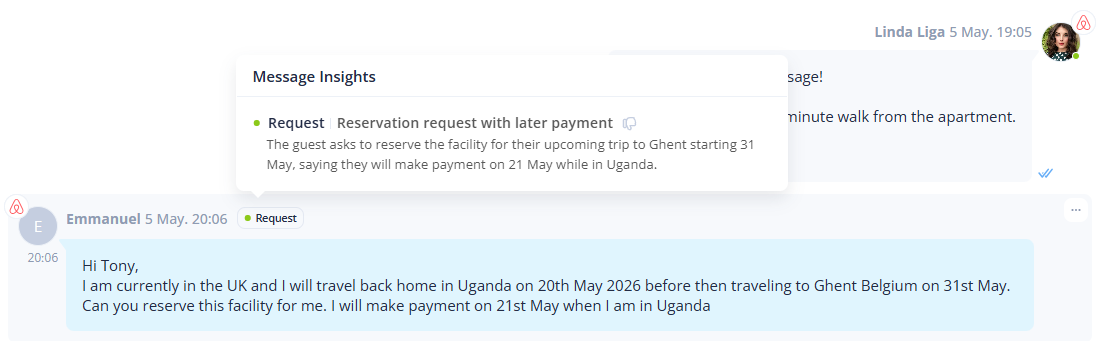
Insight labels
Labels made by AI: Complaint, Damage report, Emergency, Feedback and Request. A click opens Message Insights with the analysis. Mark as Unwanted marks an insight that is not useful.

The satisfaction score of the whole stay is in the Reservation details panel.
Pinned messages
The pinned bar at the top of the conversation shows the number of pinned messages and the latest one. The chevron opens all pinned messages. See How to pin a message.
Upsell activity
Upsell events show in the conversation between the messages. Each item names the type (Early check-in, Late check-out, Service template or Upsell) and, when a team member acted, the person, for example Early check-in approved by Anna.
… requested
The guest requested the upsell. The item shows Requested time and Price.
… awaiting review
Paid, and waiting for approval.
… bought / … approved
Confirmed, at once or by your team.
… declined / … declined with refund
Declined by your team, without or with a refund.
… cancelled
Cancelled by the guest.
… refund failed
The refund could not be made.
… applied in PMS / … PMS application failed / … not supported by PMS
Whether the change of check-in or check-out was written to your PMS.
A click on an item opens the Reservation tab at that upsell. See Upsells.
Reply form
The reply form is at the bottom of the conversation, with the message box (Write a message...).
Message mediums
The icons under the message box show the channel of each message and choose the channel of the reply. When more than one integration of the same type is connected, the name of the integration shows in brackets.
Booking channel
Sends through the messaging of the channel, for example Airbnb or Booking.com.
Sends an Instagram message. A message can have at most 1,000 characters, including the text of a saved reply and the links to attachments.
Messenger
Sends a Messenger message. A message can have at most 2,000 characters, including the text of a saved reply and the links to attachments.
Sends a WhatsApp message. More than 24 hours after the last guest message, only WhatsApp templates can be sent. See WhatsApp message templates.
SMS
Sends an SMS to the guest's mobile number. A counter shows the SMS character limit.
Sends an email.
Guest Portal
Sends the message to the guest portal.
Website Chat
Answers in the chat widget of your website.
Internal Note
A note for your team. Guests never see it.
If auto-translation makes an Instagram or Messenger message longer than its limit, the message is not sent and shows Failed to send.
Which mediums show is set in Settings → Inbox → Allowed Message Mediums. See Inbox.
Sending to shows the recipient. Mark as primary makes a phone number or email address the primary contact detail. The phone country list has a search field (Search country or dial code). A phone number that opted out gets no messages.

Reply tools
Get AI suggestion
Drafts a reply from the conversation. See AI suggestion.
Choose from saved replies
Inserts a saved reply. Typing / in the message box searches the saved replies by title and text.
Choose from WhatsApp templates
Inserts an approved WhatsApp template. Only on WhatsApp. A template cannot be changed after you insert it.
@
Mentions a team member.
Attachment (Drop files or click to attach)
Adds files to the message.
Improve your message using AI
Improves the message you started, based on the conversation. The result is in the AI Default Language of your profile.
Auto-translate outgoing messages
Translates your reply before it is sent, also an AI suggestion that you inserted. Translating to: is Guest Language or a language you choose. Guest Language is the language detected for the guest, else the preferred language of the guest, else the AI language of your organization, else English. Preview translation shows the result. The language is saved for the conversation. Whether auto-translate is on is saved in your browser. Not for WhatsApp templates.
Schedule (calendar icon)
Opens the scheduled messages of the conversation, with the tabs Automations and Broadcasts.
Auto-pilot
Turns Auto-Pilot on or off for this conversation. See Auto-Pilot.
Reply
Sends the message. For an internal note, the button is Send Internal. Ctrl+Enter (Cmd+Enter on a Mac) also sends. Enter adds a new line.

AI suggestion
The AI suggestion uses your saved replies and guidebooks, the conversation and the details of the guest, the reservation and the amenities. When the listing is connected to Airbnb, it also uses the extra Airbnb listing information.
The draft is in the AI Default Language of your profile, also when the guest writes in another language. See AI center.
AI suggested reply / AI improved reply
The draft. A click inserts it in the message box, where you can change it.
Sources
The conversations, Q&As and other sources the draft used, with links such as Edit saved reply or Edit guidebook. No sources used when there were none.
Helpful / Not helpful
Your feedback. More feedback? adds a reason: Made up wrong facts, Feels generic / AI-written, Wrong tone or style or Other.
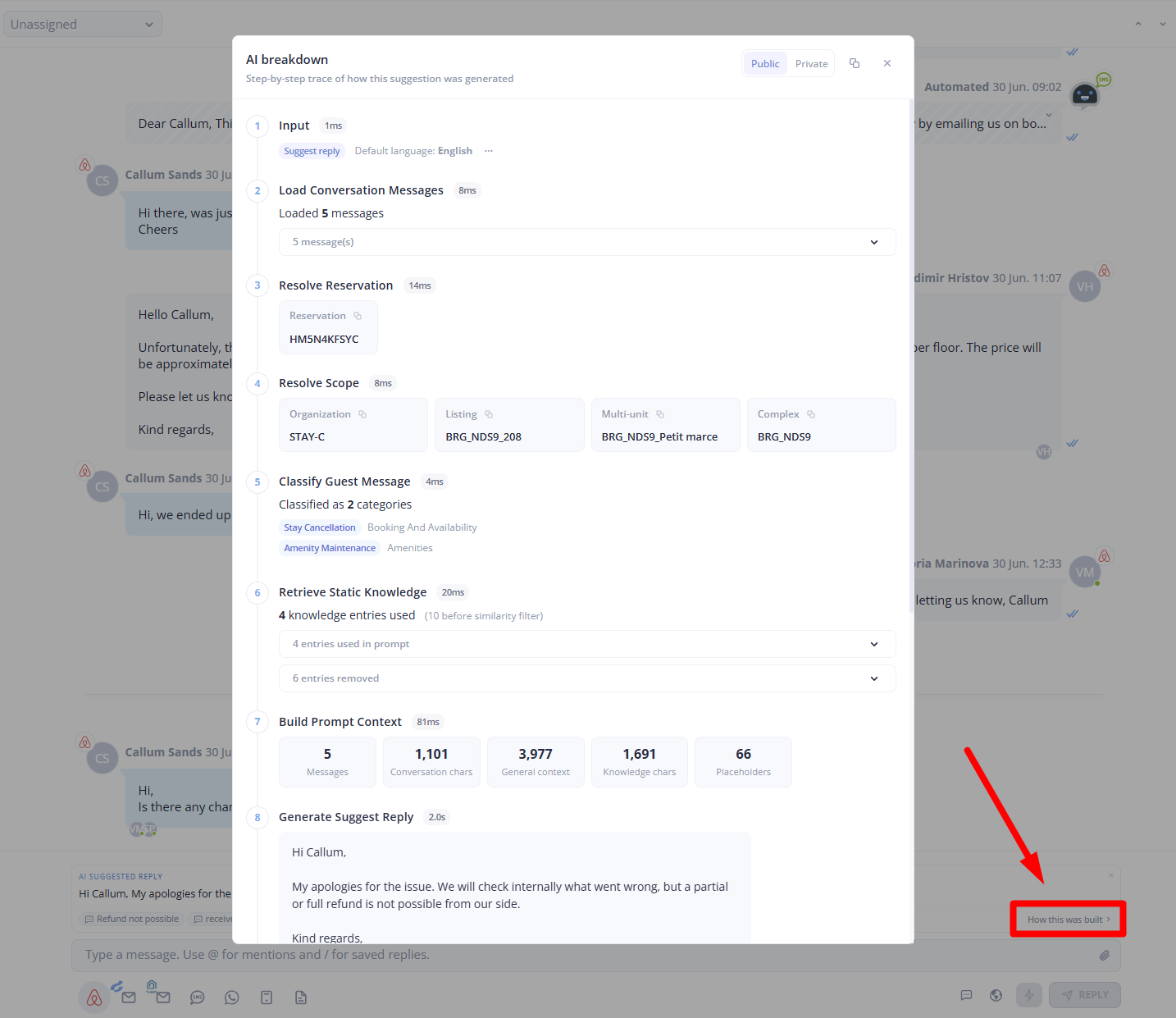
How this was built
Shows how the draft was made.
Auto-pilot simulation
What Auto-Pilot would send. Add Q&A adds an answer for the next time. It is in your AI Default Language, which can be another language than the one of the real Auto-Pilot reply.
Conversation statuses
Each conversation shows the status of its reservation. Hover the status to see when the reservation was created, confirmed, canceled or checked in.
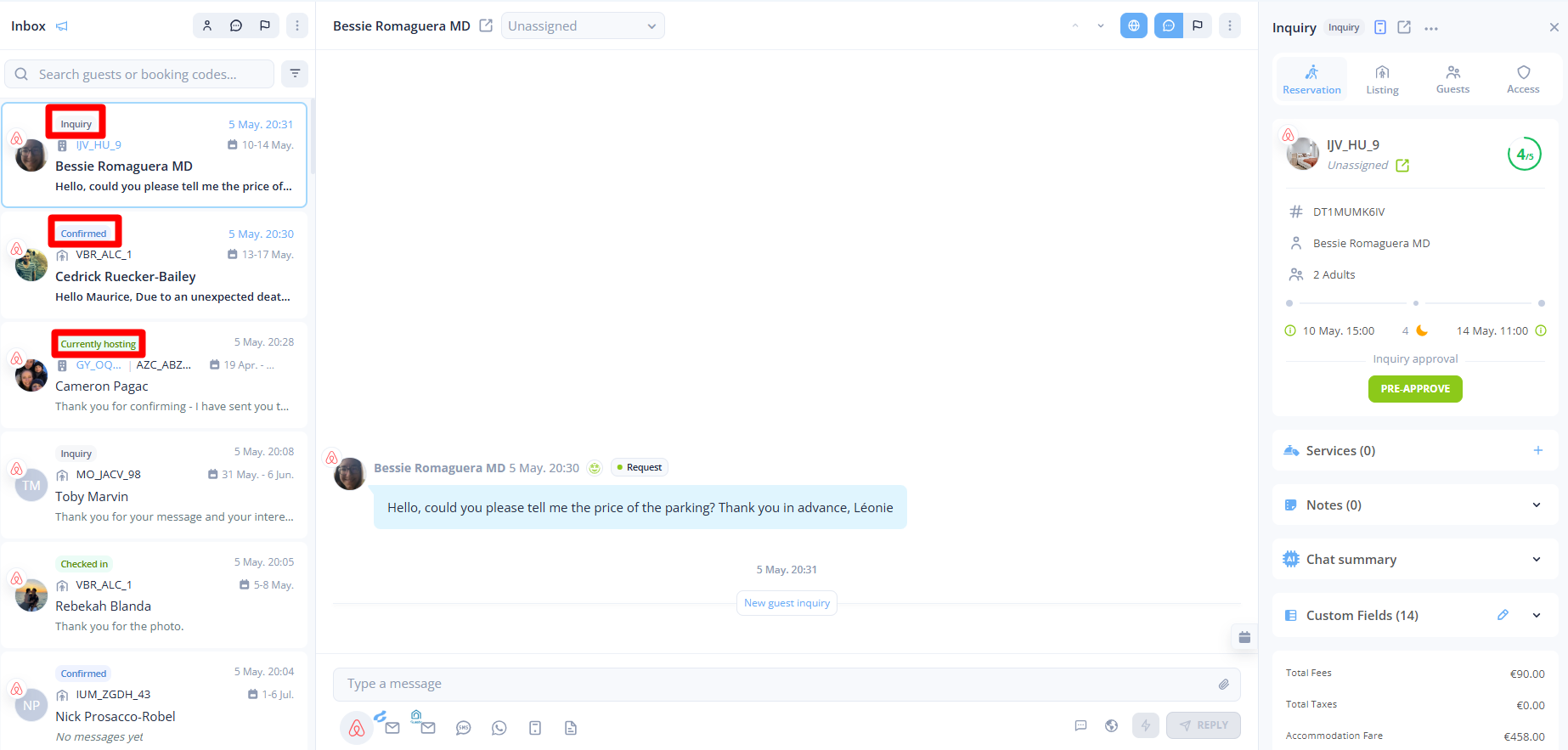
Inquiry
The guest sent an inquiry, but did not book yet.
Reserved
A booking request that waits for your approval.
Confirmed
The booking is confirmed, and arrival is 7 days or more away.
Arriving in N days
The guest arrives in fewer than 7 days.
Check-in today
The guest checks in today.
Checked in
The guest checked in. It changes automatically when the smart lock records the first entry.
Currently hosting
The guest is staying at the property.
Check-out today
The guest checks out today.
Checked out
The guest checked out.
Past guest
The stay has ended.
Canceled
The reservation was canceled.
Possible no show / No show
The guest may not have arrived, or did not arrive.
Declined, Expired, Closed, Unknown
Other statuses from the channel or the PMS.
New Guest
A conversation that matched no reservation.
Website Chat
A conversation from the chat widget of your website.
Reservation unavailable
The linked reservation was not found.