> For the complete documentation index, see [llms.txt](https://docs.guestway.io/llms.txt). Markdown versions of documentation pages are available by appending `.md` to page URLs; this page is available as [Markdown](https://docs.guestway.io/guestway-mobile-app/settings.md).
# Settings
The Settings tab of the Guestway mobile app, with your notifications, organization, appearance, security and app information.
{% hint style="info" %}
**Requirements**
* The Guestway mobile app, signed in with your Guestway account.
* For the notification types: a role that can view conversations.
{% endhint %}
The **Settings** tab shows, from top to bottom: your profile, **Notifications**, **Appearance**, **Security**, **About** and **Log out**.
## Your profile
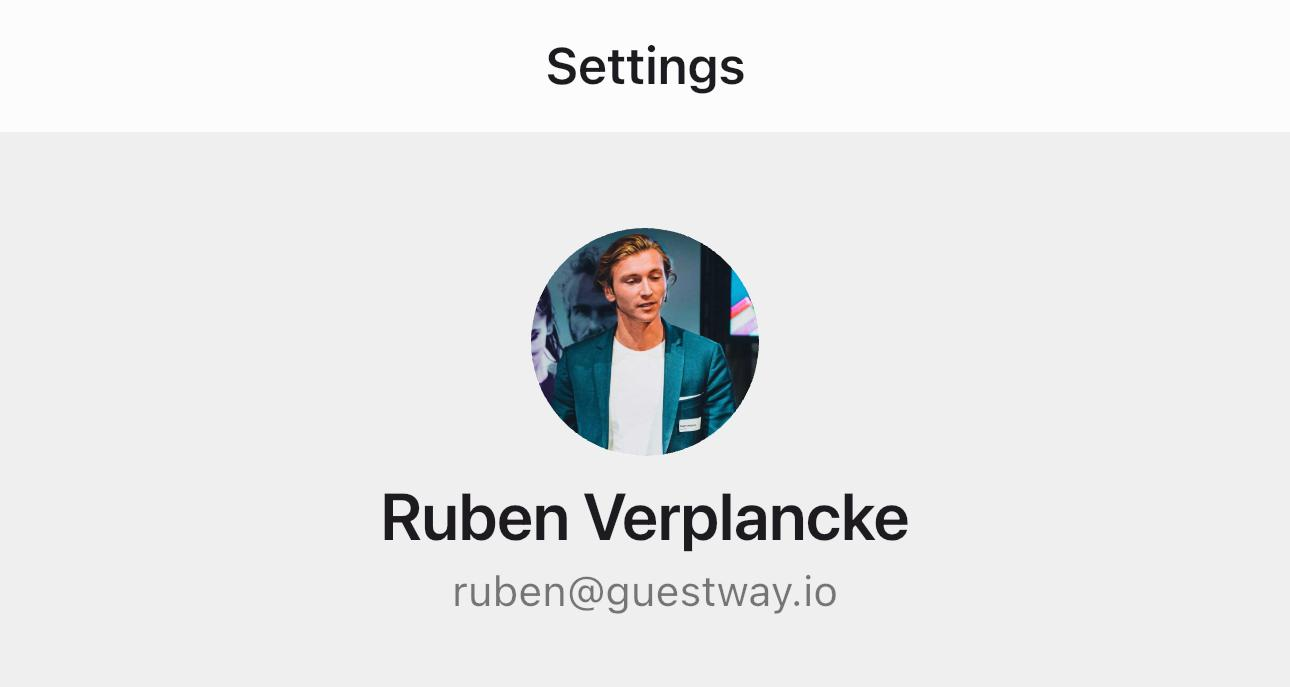
The top of the tab shows the profile picture, name and email address of the account that is signed in. You cannot change them in the app.
## Notifications
### Notification status
The first row shows if your phone allows notifications from Guestway.
| Status | What it means |
| ------------------------------- | ----------------------------------------------------------------------------------------------------------------------------------------------------------------------------------------------------------------------------------------------- |
| **Notifications are disabled.** | Your phone blocks notifications from Guestway. **Check** shows the phone's permission prompt again. If you refused notifications before, the phone may not show the prompt; then notifications can only be allowed in the phone's own settings. |
| **Notifications are enabled.** | Your phone allows notifications from Guestway. The row says *You will receive all relevant notifications.* |
### Notification types
The switches show only when notifications are not disabled and your role can view conversations. All of them are off by default. Each switch is saved to your Guestway account, so it applies on every phone you sign in on.
| Switch | What it does | Limits |
| ----------------------------------------- | ----------------------------------------------------------------------------------------------------------------------------------------------------------------------------------------------------------------------------------------------------------------------------------------------------------------------------------------------------------------------------- | ------------------------------------------------------------------------------------------------------------------------------------------------------------------------------------------------------------------------------------------------------------------------------------------- |
| **Guest message in any conversation** | You get a notification when a guest sends a message in any conversation. | None |
| **Conversation assigned to you** | You get a notification when a conversation is assigned to you. | None |
| **Guest message in flagged conversation** | You get a notification when a guest sends a message in a flagged conversation. | None |
| **Urgent guest messages** | You get a notification when a guest needs help urgently, for example a lockout or a safety problem. The notification title starts with 🚨. The AI scores each guest message from 0 to 5; a score of 4 or 5 makes the conversation urgent. If a conversation becomes urgent after the guest message arrived, you get the newest guest message again as an urgent notification. | Muted conversations and conversations without a reservation are never urgent. The urgency is usually decided within a few seconds; when several messages arrive quickly, it can take 30 seconds. The urgent notification is sent only for a guest message that is less than 60 minutes old. |
With **Guest message in any conversation** also on, an urgent guest message gives two notifications: the normal one first, then the 🚨 one.
## Appearance
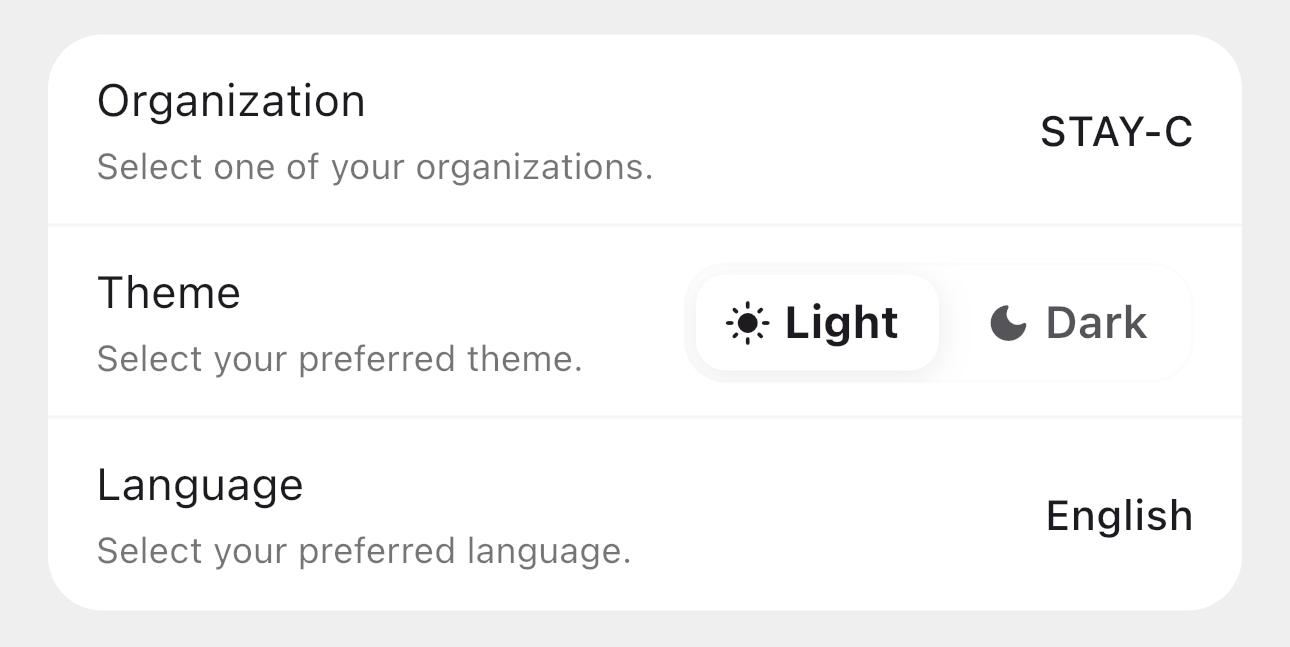
| Row | What it does | Limits |
| ---------------- | ------------------------------------------------------------------------------------------------------------------------------------------------------------------------------------------------------------------------------------------------------------ | --------------------------------------------------------- |
| **Organization** | Sets the organization that the app shows. **Schedule**, **Calendar** and **Inbox** reload with the data of that organization. After you sign in, the app opens the organization you used last on this phone. | If you belong to one organization, it is the only option. |
| **Theme** | **System**, **Light** or **Dark**. The change applies immediately. | None |
| **Language** | The language of the app: English, Français, Nederlands, Deutsch, Español, Türkçe, Shqip, Polski, Русский, Українська, العربية or Tiếng Việt. After a change, **Schedule**, **Calendar** and **Inbox** reload, so that dates and labels use the new language. | None |
## Security
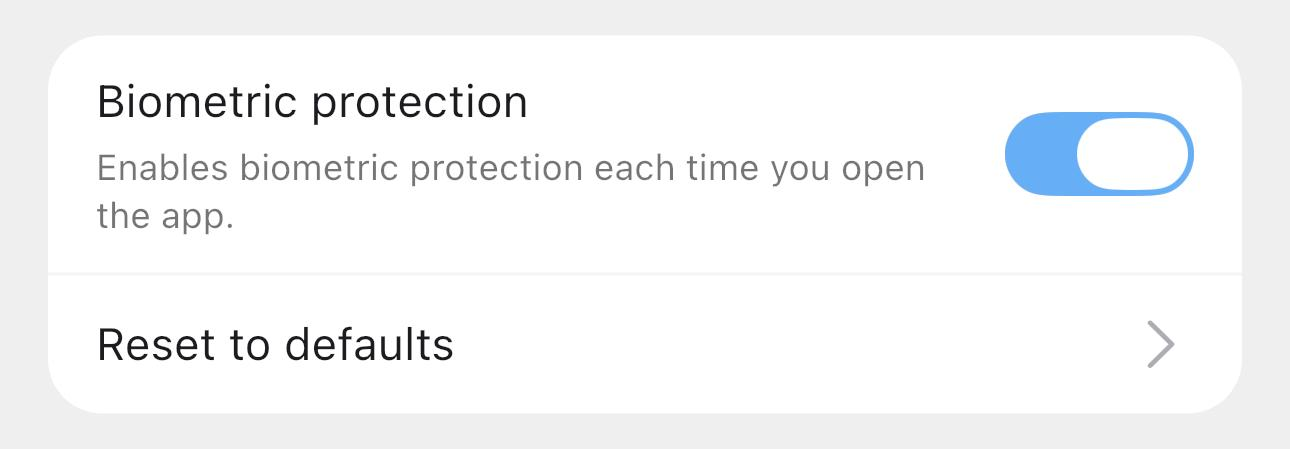
| Row | What it does | Limits |
| ------------------------ | ---------------------------------------------------------------------------------------------------------------------------------------------------------------------------------------------------------------------------------------------------------------------------------------------------------------------------------------------------------------------------------------------------------------------------------------------------------------------- | ------------------------------------------------------------------------------------------------------------------------------------------------------------------------------------------------------ |
| **Biometric protection** | When it is on, the app asks for Face ID or a fingerprint each time it starts, on a screen that says *Your account is protected.* To turn the switch on or off, you must confirm with Face ID or a fingerprint first. If that fails or you cancel, the switch goes back. | Face ID, Touch ID or a fingerprint only: the phone's passcode is not accepted. Biometrics must be set up on the phone; otherwise the app shows *No biometric authentication is set up on this device.* |
| **Reset to defaults** | Clears the app's settings on this phone and starts the app again: the organization, theme and language, biometric protection, the view choices in **Schedule**, **Calendar** and **Inbox**, and the first-time setup, so the welcome screens show again. A dialog asks *Are you sure you want to delete everything & reset the app back to it's defaults?* **Continue** confirms. If biometric protection is on, you must confirm with Face ID or a fingerprint first. | It does not change your notification types, which are saved to your account. It does not sign you out and does not delete your Guestway account. |
## About
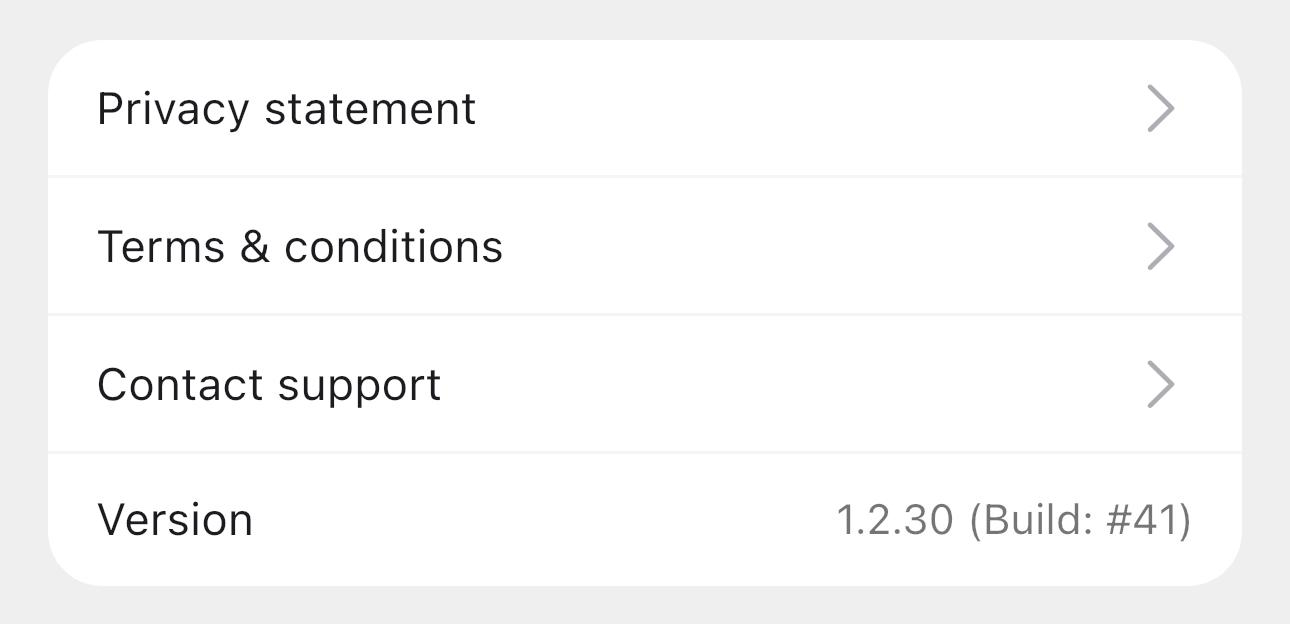
| Row | What it does |
| ---------------------- | ------------------------------------------------------------------------------------------------------- |
| **Privacy statement** | Opens the Guestway privacy statement on the Guestway website. |
| **Terms & conditions** | Opens the Guestway terms and conditions on the Guestway website. |
| **Contact support** | Opens an email to Guestway support, with the address and the subject *Support: Guestway App* filled in. |
| **Version** | Shows the version and build number of the app, for example *1.3.15 (Build: #59)*. |
## Log out
**Log out** is at the bottom of the tab. It signs you out of the app on this phone, and the phone stops getting Guestway notifications. A dialog asks *Are you sure you want to logout?* **Continue** confirms.
## Related
* [How to turn on notifications](/guestway-mobile-app/settings/how-to-turn-on-notifications.md)
* [How to turn on biometric protection](/guestway-mobile-app/settings/how-to-turn-on-biometric-protection.md)
* [How to install and sign in to the Guestway app](/guestway-mobile-app/getting-started.md)
---
# Agent Instructions
This documentation is published with GitBook. GitBook is the documentation platform designed so that both humans and AI agents can read, navigate, and reason over technical content effectively. Learn more at gitbook.com.
## Querying This Documentation
If you need additional information that is not directly available in this page, you can query the documentation by asking a question.
Perform an HTTP GET request on the following URL with the `ask` and `goal` query parameters:
```
GET https://docs.guestway.io/guestway-mobile-app/settings.md?ask=&goal=
```
`ask` is the immediate question: it should be specific, self-contained, and written in natural language.
`goal` is what the user is ultimately trying to achieve, the reason they need the answer. Sharing it helps GitBook give you a better, more relevant answer. A goal is most helpful when it describes the outcome the user wants rather than restating the question. For example, with `ask=how do I create an API token`, a goal like `automate deployments from our CI pipeline` lets GitBook tailor the answer to that use case.
The response will contain a direct answer to the question and relevant excerpts and sources from the documentation.
Use this mechanism when the answer is not explicitly present in the current page, you need clarification or additional context, or you want to retrieve related documentation sections.