
Guest portal
The guest portal is the branded web app of each reservation, where guests register, find their access and stay information, and chat with you.
Opening the portal
Every reservation has its own guest portal link, made automatically. The link is in the right-side panel of the reservation, under Reservations, with a preview and a copy option. The look of the portal comes from the branding profile of the property.
Registration steps
Before arrival, guests complete pre-check-in in the order of the guest journey: guest information, trip details, agreement, protection, upsells, fees and ID verification. Steps that are off, or hidden for the booking channel, are left out. Guests who leave and come back continue from the latest step they completed.
Agreement
The rental agreement, with a signature field when a signature is required, and the house rules.
Protection
The choice between Damage Waiver and Security Deposit, with the price and your description.
Upsells
Early check-in and late check-out under Arrival & departure, with the price for the time they pick, and custom upsells under Extras for your stay.
Fees
Each fee with its name and calculated amount, and any unsettled items from your PMS.
ID verification
The document check, last, after all payments.
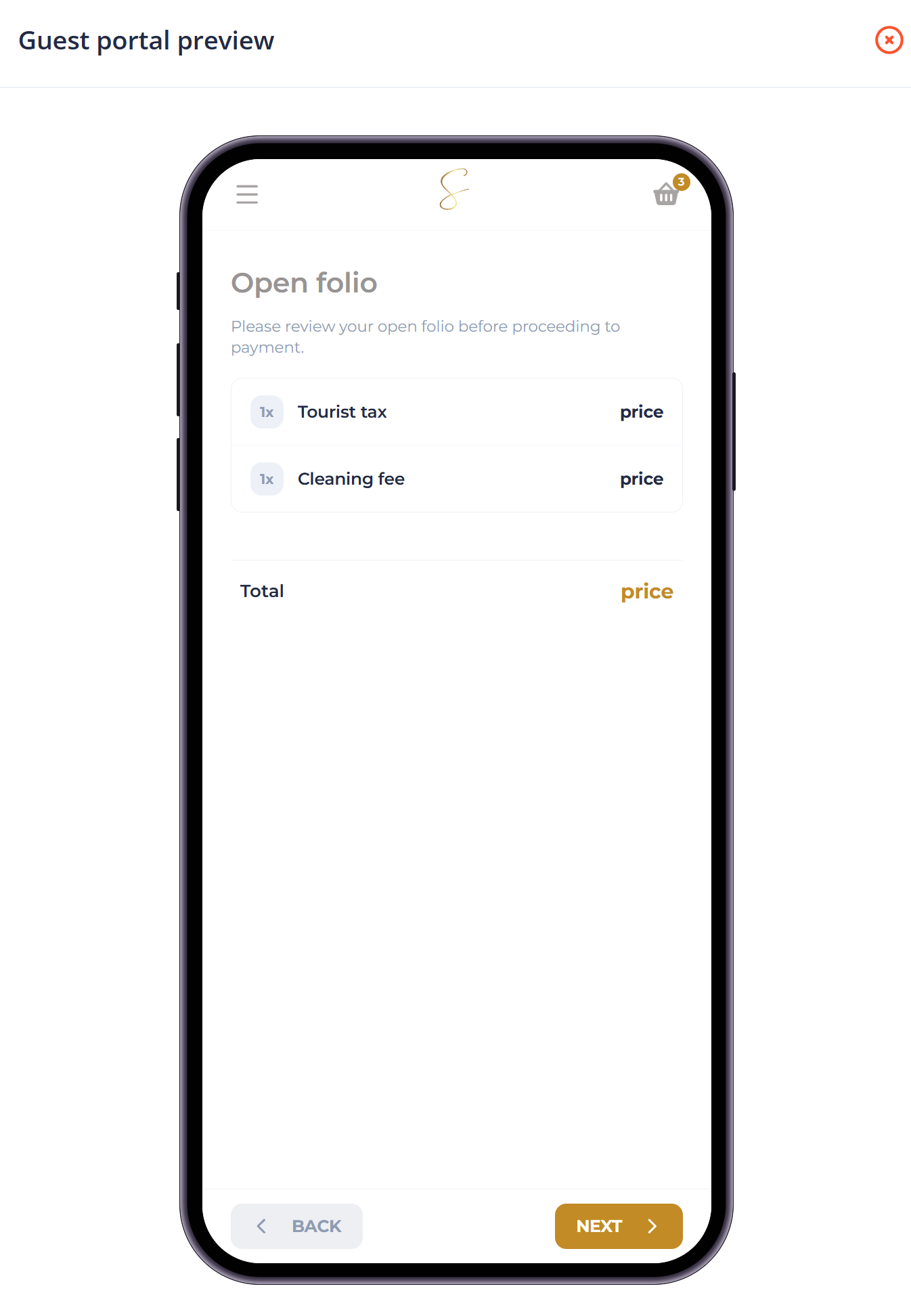
Guests pay during pre-check-in, and see a summary of what they bought before they submit. Names, prices, requested times, totals and approval status read the same in the basket, on the payment screen and in the registration summary, so the guest knows whether a request is confirmed, pending or waiting for your approval.
Home
Listing details
The address of the booked unit, with a Google Maps link.
Stay details
The check-in and check-out dates, and the number of adults and children.
Booking
The booking status and the booking code.
Upsells
Early check-in and late check-out, at the top of the booking page. Late check-out can also be bought during the stay, when the upsell allows it. Custom upsells are in the Services tab. See Upsells.
Services
A row with the text Extras for your stay that opens the Services tab. It shows when the Services tab shows.
Social media links
The social media accounts of your branding profile.
Services
In the Services tab, guests book custom upsells during the stay, and see their requests and purchases with their status.
The Services tab shows after pre-check-in is complete, when at least one of these is true:
A custom upsell can still be booked.
The guest has a request that they can still manage.
Your team added a service to the reservation.
After the stay, the tab shows only the services with a request that the guest can still manage. During pre-check-in, custom upsells are in the Upsells step, not in the Services tab.
Access
The access area shows the smart lock and static lock codes of the stay. When a stay has more than one way in, each available door and its code is listed separately, and the access option the guest is using now is marked. See Smart locks and Static locks.
Guidebooks
Local recommendations, house rules and check-in instructions, as PDF, link or text. See Guidebooks.
Wi-Fi and location
The Wi-Fi network name and password, and the location of the unit.
Room control
In the Room tab, guests control the connected devices of the listing:
Thermostat
Change the temperature during the stay. See Thermostats.
Lighting
Control Philips Hue and compatible bulbs.
The Room tab shows only when the listing has at least one connected thermostat or light. Guests see it during the stay, after pre-check-in is complete. For a listing without a connected thermostat or light, the portal has no Room tab.
You cannot hide the Room tab yourself. There is no setting for it in the guest journey or the branding.
Self check-out
On departure day, the guest opens the check-out screen from the booking screen and slides the Check out control. When the step has Instructions, the screen shows them. Without instructions, the screen shows Ready to check out? with three points: Your access ends (door codes and digital keys stop working), Your host is notified and Take everything with you (check-out cannot be undone). See How to set up self check-out.
Payments and deposits
Guests pay the damage waiver or deposit, upsells and fees during pre-check-in. For a security deposit with Hold only, the card is saved and a hold is authorized instead of a charge. If the guest already has a usable card on file, they may not need to enter it again.
Chat
Guests message you from the portal. The messages arrive in the Unified AI inbox. Guests pick their language, and every message is translated automatically in both directions.
Related
Guest journey: the steps of pre-check-in.
Branding: the look of the portal.
Reservations: where the portal link is.