
Guest journey
A guest journey sets the steps guests complete in the guest portal before arrival, during the stay and at check-out.
Journeys
Guest journeys are in Settings → Organization → Guest Journey. Each journey applies to the listings and multi-units you link to it.
Name
The name of the journey.
Required.
Description
A note for your team.
None
Listings, Multi-Units
The properties that use this journey.
None
Default
The journey for every property without a specific journey.
A journey with linked listings or multi-units cannot become the default. Unlink them first.
Duplicate
Copies the journey.
None
Guest facing currency
The currency guests pay in.
Upsells are offered only in journeys with the same currency.
Redirect URL
The page guests go to the first time they complete pre-check-in.
Must be a valid URL.
Preview guest portal
Opens the pre-check-in flow with this configuration, including the house rules and rental agreement.
Available after the journey is saved. Some reservation and pricing data in the preview is mocked.
Phases and steps
The editor has three phases: Pre-check-in, Check-in and Check-out. Pre-check-in steps run in this order: Guest Information, Trip Details, Agreement, Protection, Upsells, Fees, ID Verification. The Upsells step is also in Check-in, for purchases during the stay. Self check-out is in Check-out.
Guests who leave pre-check-in and come back continue from the latest step they completed.
Each step has a Channel configuration:
All
All reservations see the step.
Include only
Only reservations from the selected channels see the step.
Exclude
Reservations from the selected channels do not see the step.
For what guests see in each step, see Guest portal.
Guest information
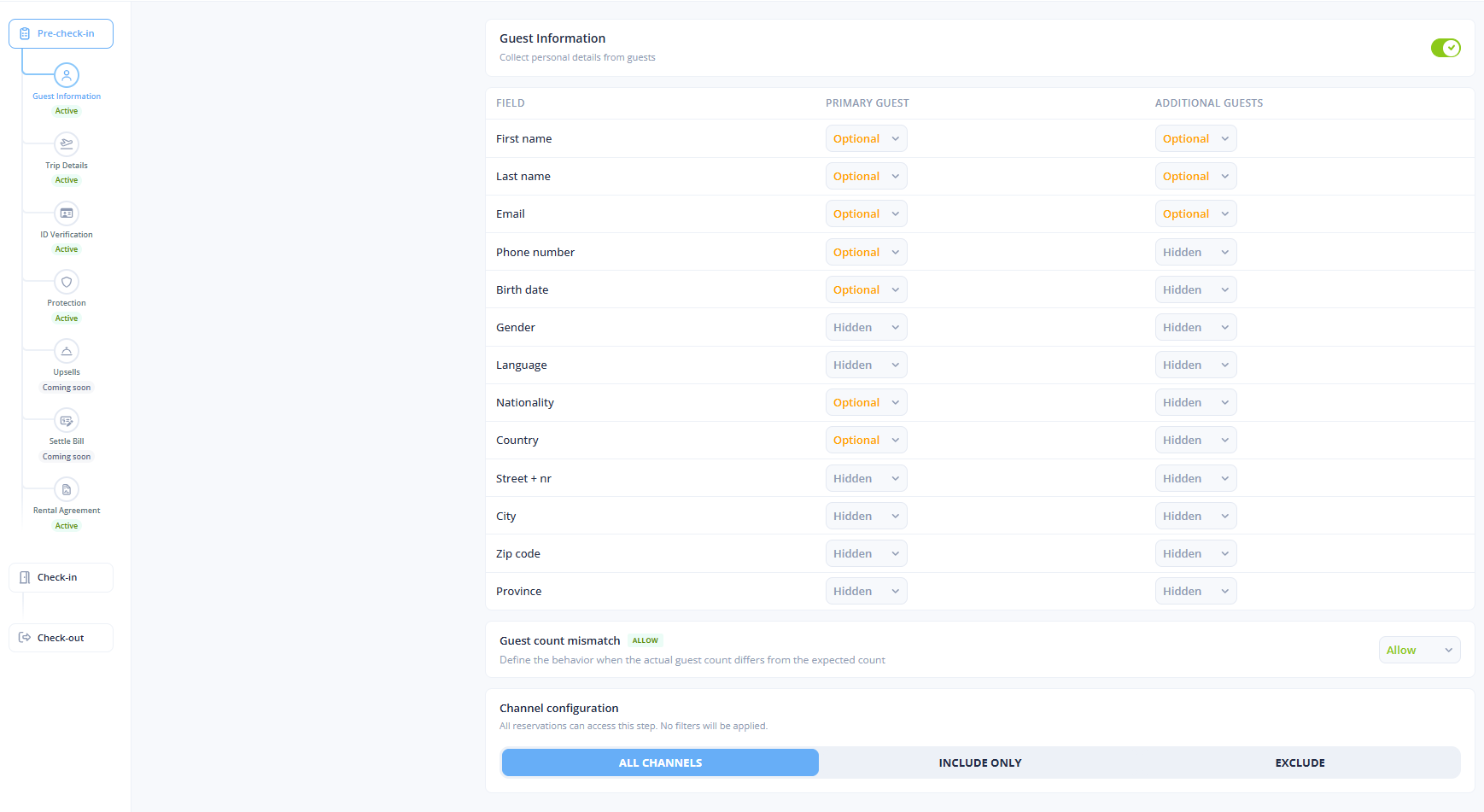
Guest fields
The details collected from each guest: First name, Last name, Email, Phone number, Birth date, Gender, Language, Nationality, Country, Street + nr, City, Zip code and Province. Each field has a requirement for the Primary guest and for Additional guests: Hidden, Optional or Required.
None
Guest count
What happens when the number of guests differs from the booking: allow the guest to continue, warn the guest, or block the guest until every guest is added.
None
Phone number required
Makes the phone number of the main guest required.
Always on when the Protection step is on.
Trip details
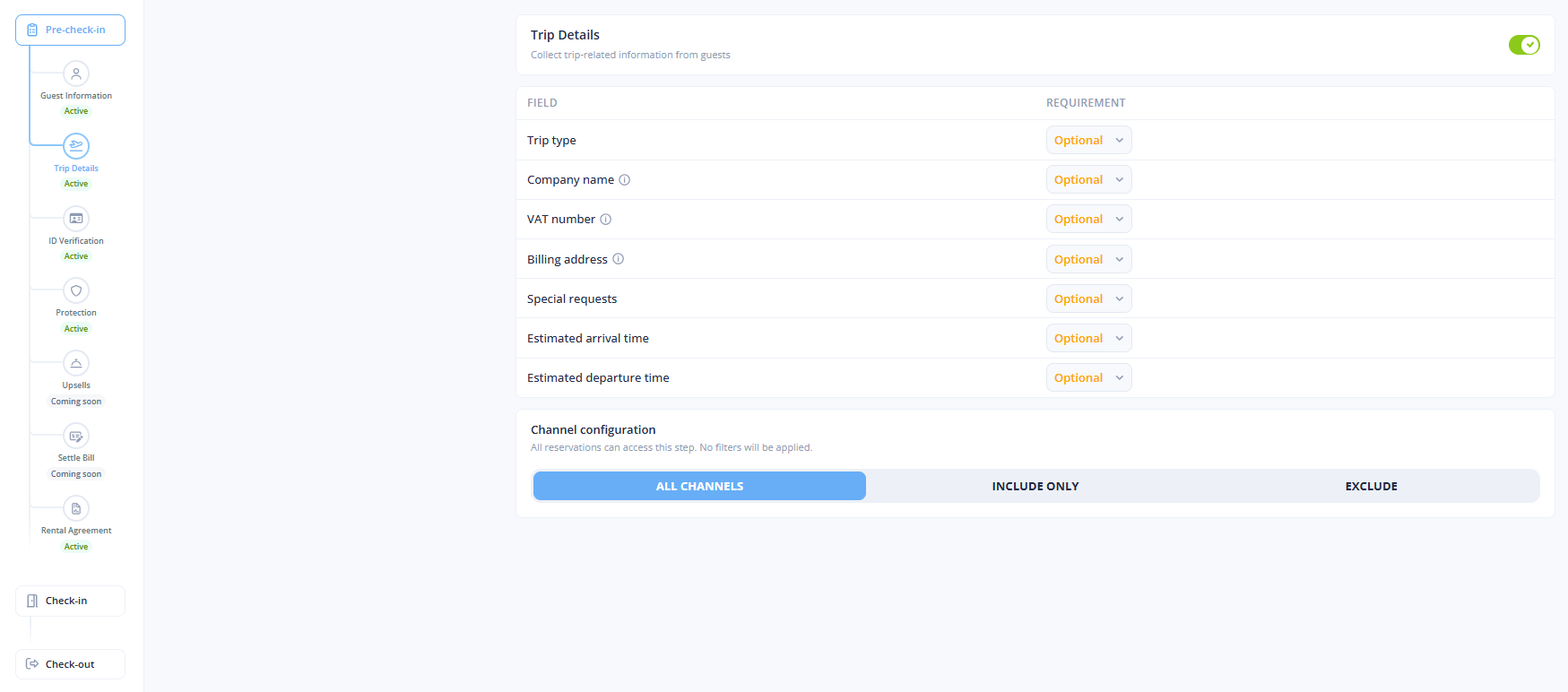
Trip fields
Trip type, Special requests, Estimated arrival time and Estimated departure time, each with a Requirement: Hidden, Optional or Required.
None
Business fields
Billing details for invoicing: Company name, VAT number and Billing address. One setting applies to the three fields: Hidden or Optional.
Shown to guests only when they choose a business trip.
You cannot add your own questions or fields to the guest journey, for example a separate email address for invoices. Guests fill in only the fields of Guest Information and Trip Details. Their answers show on the reservation, under View information in the Pre-Check-In card. See Reservation details panel.
Agreement
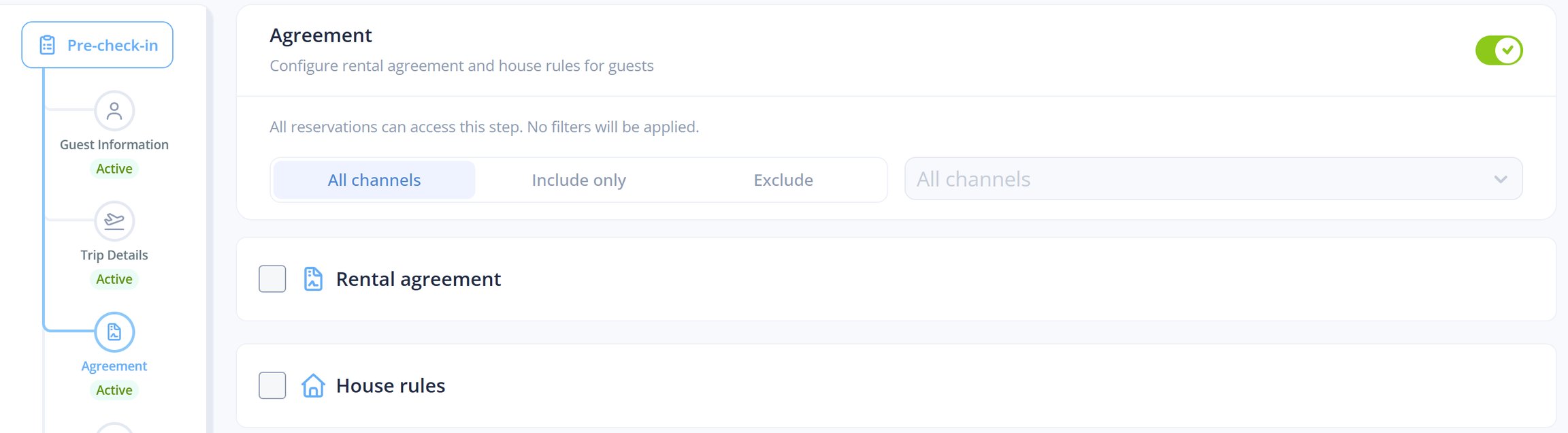
Rental agreement
The contract the guest accepts before arrival, for example terms, liability and cancellation.
Rich formatting, images and template variables from the reservation.
Collect signature
Active: guests must sign before they can continue. Inactive: guests accept without signing.
Only for the rental agreement.
House rules
The rules of the property the guest acknowledges, for example noise, pets, smoking, visitors and waste.
Rich formatting, images and template variables from the reservation.
The rental agreement and the house rules can be turned on separately.
Protection
In the Protection step, each guest chooses how accidental damage is covered: a Damage Waiver or a Security Deposit.
Protection readiness
The readiness alert at the top of the step lists what is missing, with Fix and Re-check for each item.
Billing account
A connected, usable Stripe account set as the organization default.
Settings → Billing. A new Stripe account must first be approved by Stripe.
Listings
Each subscribed listing has a complete address (street, city, zip code, country) and a pet policy (Pets allowed).
Fix on the listing, or Set pet policy for all listings without one.
Branding
The default branding has a company name and a contact email.
Settings → Branding.
Damage waiver
Charge to guest
Shows the damage waiver as an option in pre-check-in.
None
Pricing type
Flat fee (once per stay), Per night, Per adult, Per adult per night, Per person (all guests) or Per person per night.
None
Amount
The amount for one unit of the pricing type.
None
Guest-facing description
The text guests read when they choose.
A starter text is filled in.
Damage waiver type
How the stay is insured: Full protection, Basic protection or Self Insured. The editor shows the insurance price per night and your profit for each type.
Self Insured is not available with Always protect.
Always protect
Insures every reservation of the journey, also when the guest skips the waiver or chooses a deposit. You pay the premium on every booking.
You must confirm a dialog to turn it on.
Full protection
Full coverage from €0 to €50,000 per night.
A higher premium per night.
Basic protection
€500 excess, up to €50,000. Damage under €500 cannot be claimed.
A lower premium per night.
Self Insured
No third-party insurance. You cover any damage yourself.
A platform service fee: a percentage of the fee you collect.
The cost breakdown shows the fee charged to the guest, the Insurance premium and the Property manager profit. Insurance premiums are priced in euros. With another guest-facing currency, the profit figures are approximate.
When neither Charge to guest nor Always protect is on, the damage waiver is inactive: guests do not see it and nothing is covered.
Security deposit
Inherit from property
Uses the Default security deposit of each property. View property deposits lists the properties of the journey without one.
Properties without a deposit use the amount below.
Pricing type
The same types as the damage waiver.
None
Amount
The deposit amount.
None
Guest-facing description
The text guests read when they choose.
A starter text is filled in.
Charge method
Hold only or Charge & refund.
The default is Hold only.
Release method
For Hold only: Auto-release 0 to 30 days after check-out, or Manual release.
None
Refund method
For Charge & refund: Auto-refund 0 to 7 days after check-out, or Manual refund.
None
Allow extending the hold during the reservation
Extends the hold during the stay when the card window of Stripe is shorter.
Only for Hold only.
Allow extending the hold after checkout
Extends the hold after check-out when the card window of Stripe is shorter.
Only for Hold only.
Hold only
The card is saved, and a hold is authorized at the chosen time. The hold is captured or released later.
No Stripe charge fee.
Charge & refund
The card is charged now and refunded after check-out.
A Stripe processing fee of about 2%.
If the guest already has a usable card on file for the reservation, they may not need to enter it again before the hold.
Skip options
No skip
Guests must choose a protection option before they continue.
Always skippable
Every guest can skip the protection step.
Limit skip option visibility
Only reservations that match all the conditions you turn on can skip: Short stays (fewer nights than the Night cutoff), Long stays (more nights than the Night cutoff), Confirmed before (reservations confirmed before a date) or Channels (reservations from the channels you Include, or from all channels except the ones you Exclude). With Channels on, select at least one channel.
The Channels condition limits only the skip option. Reservations from the other channels still see the protection step and must complete it. To hide the whole step on some channels, use the Channel configuration of the step.
Protection on the reservation
After pre-check-in, the reservation in the Inbox shows the protection status. Protection Details shows the coverage period, who paid, the Truvi verification and a link to the broker.
Covered
The background check passed. The guest is insured up to €50,000.
Pending
The check has not finished yet. It usually resolves within moments.
Covered (flagged)
Insured, with reduced coverage, for example up to €1,000. The guest had a minor earlier issue.
Rejected
Truvi does not insure this guest. You pay no premium, only an administration fee of about €0.25 for the check.
Deposit activity also shows on the reservation: a saved card, a hold that succeeds or fails, funds captured or released, and a refund or expiry that needs attention. A scheduled release or refund can be paused and resumed.
The guest pays the damage waiver or deposit into your Stripe account. Guestway charges you the insurance premium at the end of the month.
Upsells
The Upsells step offers the upsells of your organization: early check-in, late check-out and custom upsells.
Manage upsells
Shows the upsells offered in the step.
None
Create a new upsell
Creates an upsell with the currency and the properties of the journey.
None
An upsell is offered only when its currency matches the Guest facing currency of the journey. See Upsells.
Fees
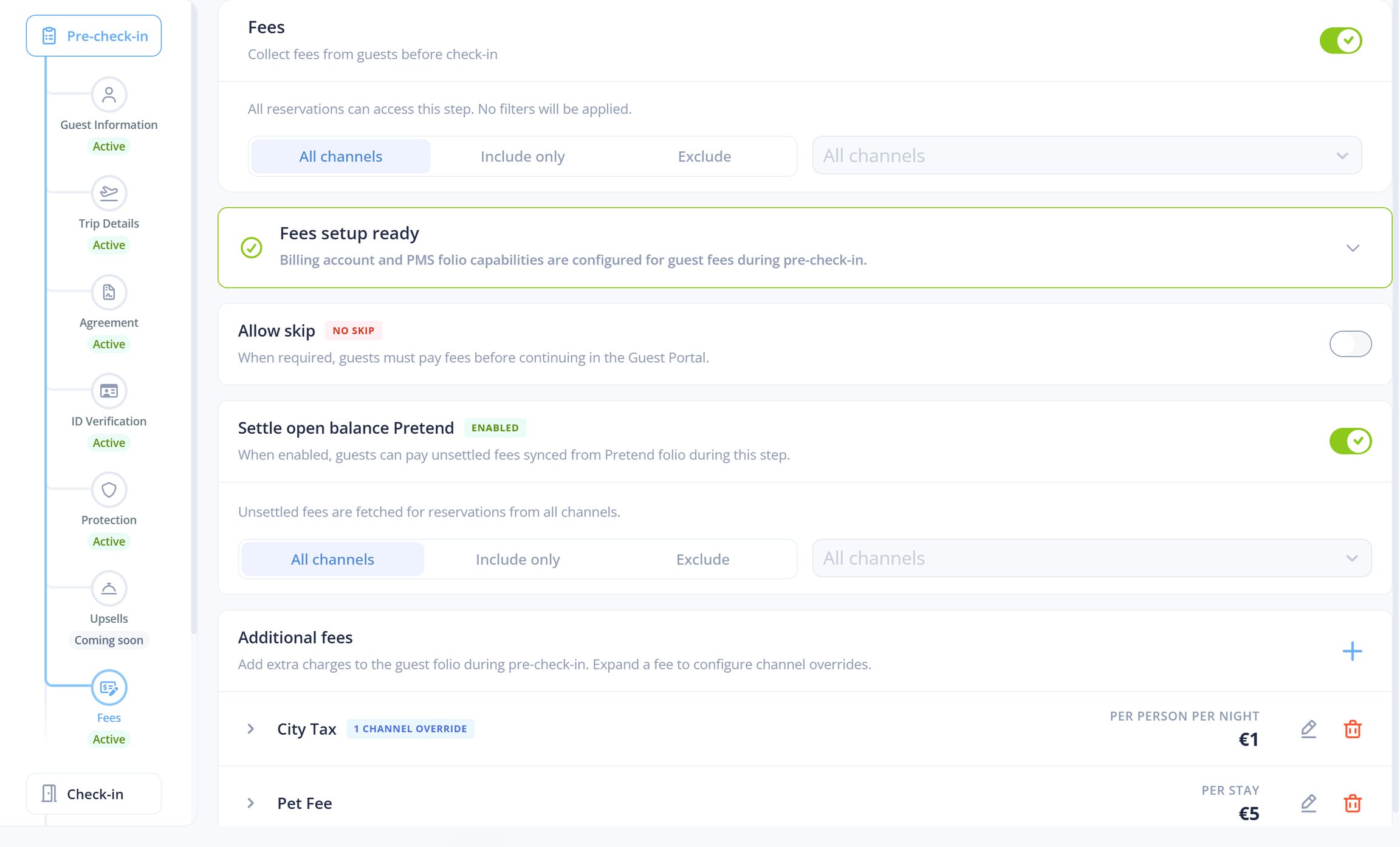
The Fees step adds charges to the guest folio during pre-check-in, for example city tax, tourist tax or cleaning.
Allow skip
When off, guests must pay the fees before they continue.
None
Display name
The name of the fee that guests see.
None
Pricing type
Flat, Per night, Per adult, Per adult per night, Per person, Per person per night, Percentage of stay (of the accommodation fare) or No charge (the fee is switched off, but kept).
New fees use Per night.
Amount
An amount, or a percentage for Percentage of stay.
A percentage is between 0.01 and 100, with at most 2 decimals. A dot or a comma works.
VAT percentage
The VAT rate of the fee.
Whole numbers only.
Sync PMS (with the name of your PMS)
After guest payment, syncs the fee and the payment to the PMS folio.
Needs a connected PMS.
Sync payment only
Posts the guest payment to the PMS folio without adding a bill line.
Only when the PMS sync is on.
Service name
The name of the service in your PMS for the bill line.
Required when a bill line is synced.
Channel overrides
Changes the fee for one booking channel: on or off, with its own pricing type and amount.
Other channels use the default price.
Fetch unsettled items from PMS
Shows the guest the charges already on their bill in your PMS, next to your fees.
Has its own channel configuration.
The validation messages are Max 2 decimal places, Must be between 0.01 and 100 and Must be a whole number.
ID verification
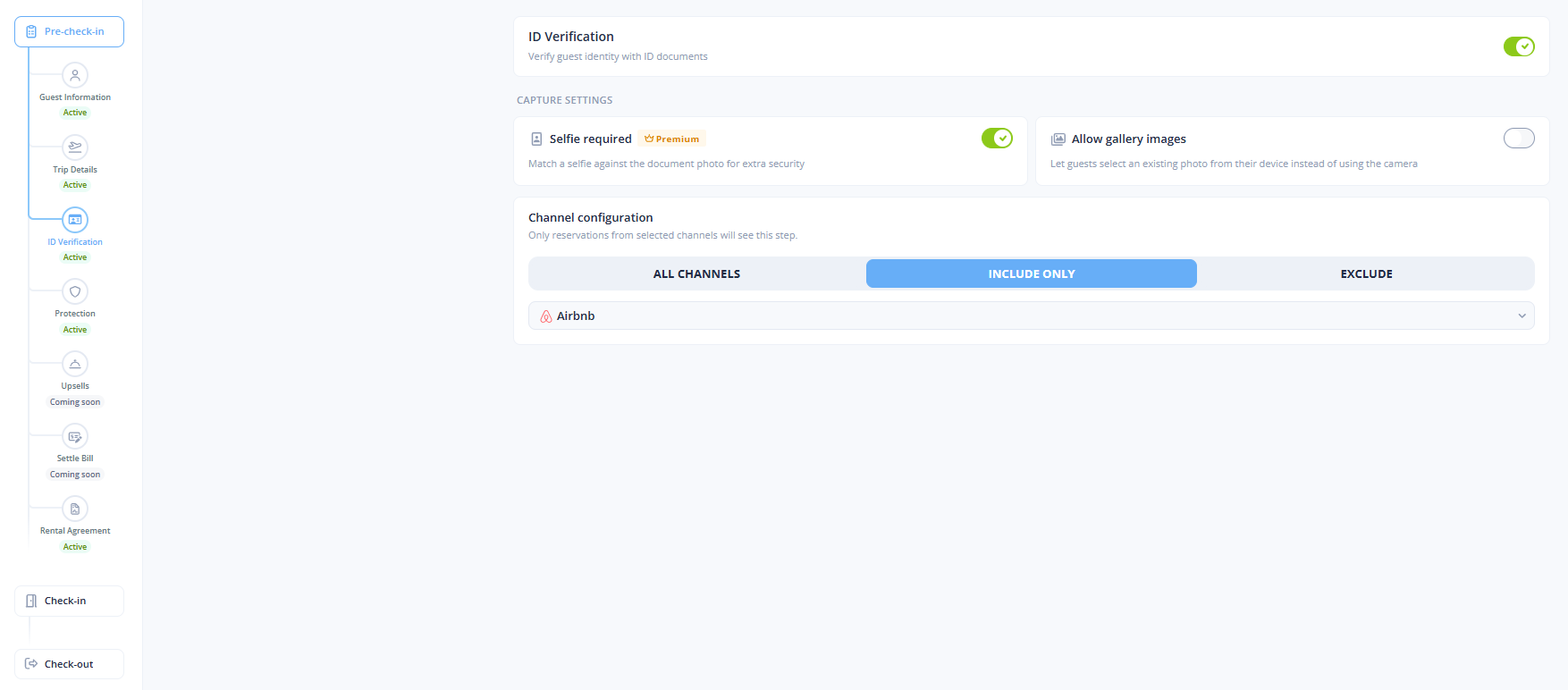
Selfie required
Matches a selfie against the document photo.
Premium.
Allow gallery images
Lets guests choose an existing photo from their device instead of using the camera.
None
ID verification is the last pre-check-in step. It is not required for damage waivers. Each completed verification is billed and charged automatically each month:
ID verification
€0.49
ID verification with Selfie required
€0.99
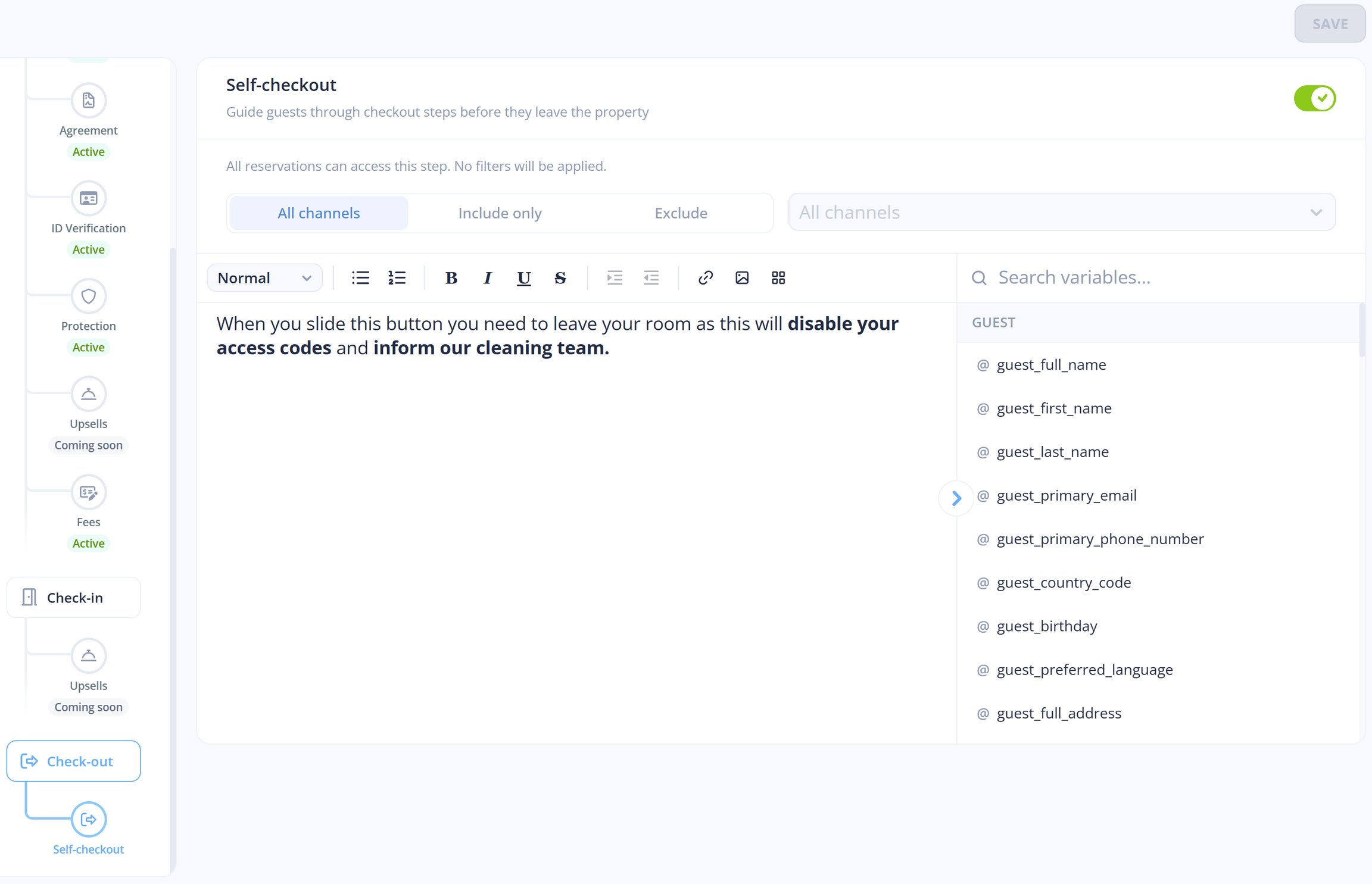
Self check-out
Instructions
What the guest reads before they leave.
When empty, guests see a default check-out screen.
Channel configuration
Which booking channels see the step.
None
A completed check-out is recorded on the reservation as completed by guest, with a timestamp, next to the timestamps of the pre-check-in steps.
Access ends at check-out only on smart locks with Revoke access on check-out on. On other locks, access ends at the normal end time. See Smart locks.
Related
Guest portal: what guests see in each step.
Reservation details panel: the answers of the guest on the reservation.