
AI center
The AI center holds the knowledge the AI uses to answer guests, shows how well it answers, and sets when Auto-Pilot replies on its own.
AI Center is in the left-hand menu, and in the profile menu at the top right. It has six tabs: Add Knowledge, Browse, Dashboard, Suggestions, Playground and Auto-Pilot. Without access, a link to the AI center shows You do not have permission to access AI Center.
Add Knowledge
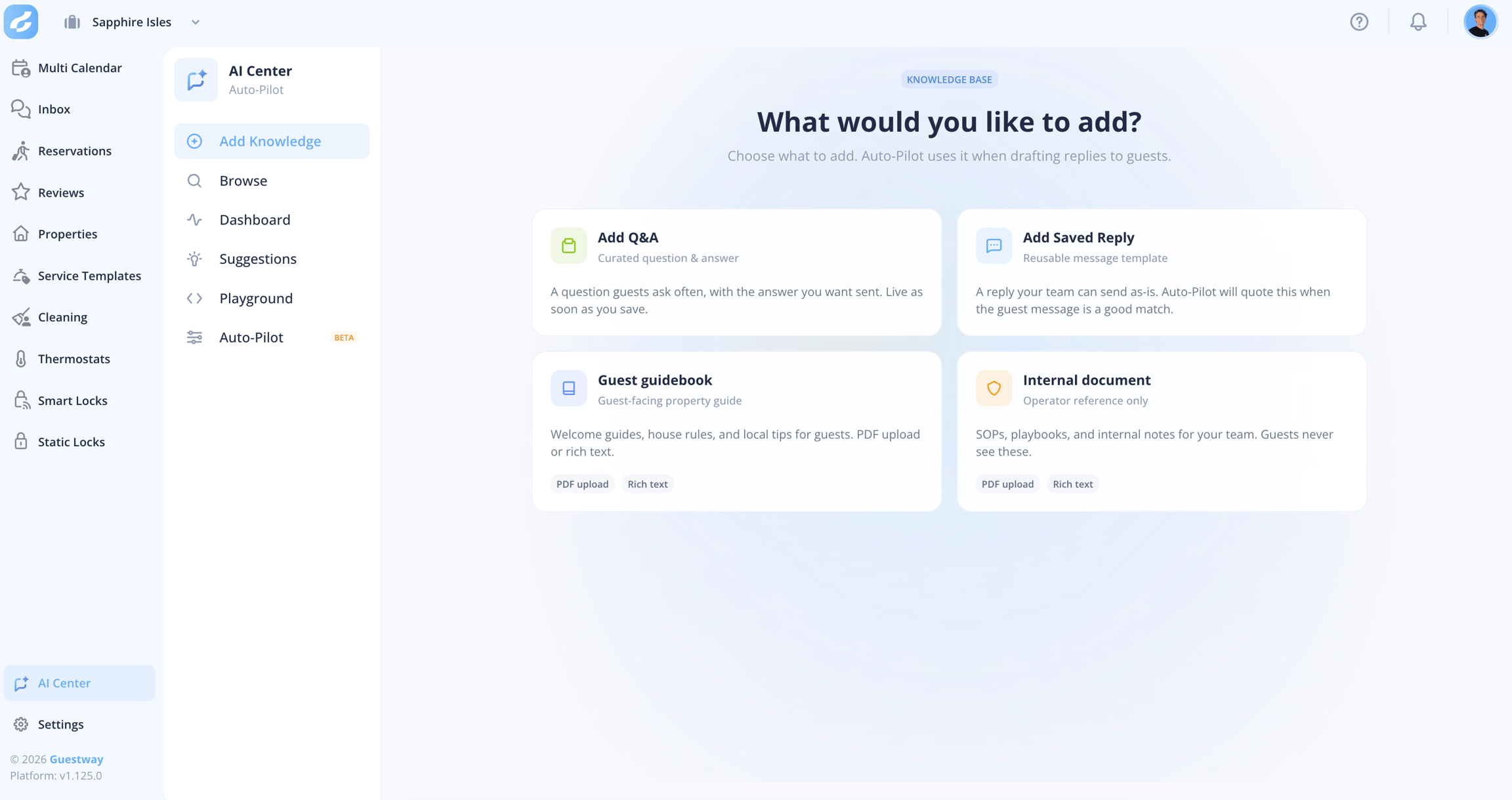
Q&A
One question guests ask often, with the exact answer you want them to get.
Guests, through AI replies.
Saved reply
A complete message that your team sends as it is, such as check-in instructions or parking info.
Guests, through AI replies. Your team can also insert it by hand in the inbox.
Guest guidebook
Welcome guides, house rules and local tips, as rich text or PDF.
Guests, in the guest portal and through AI replies.
Internal document
SOPs, playbooks and internal notes for your team, as rich text or PDF.
Your team and the AI. Guests never see the document.
Guidebooks and saved replies in Properties with can be used by AI switched on appear in the AI center automatically. They stay in sync when you edit them.
Q&A
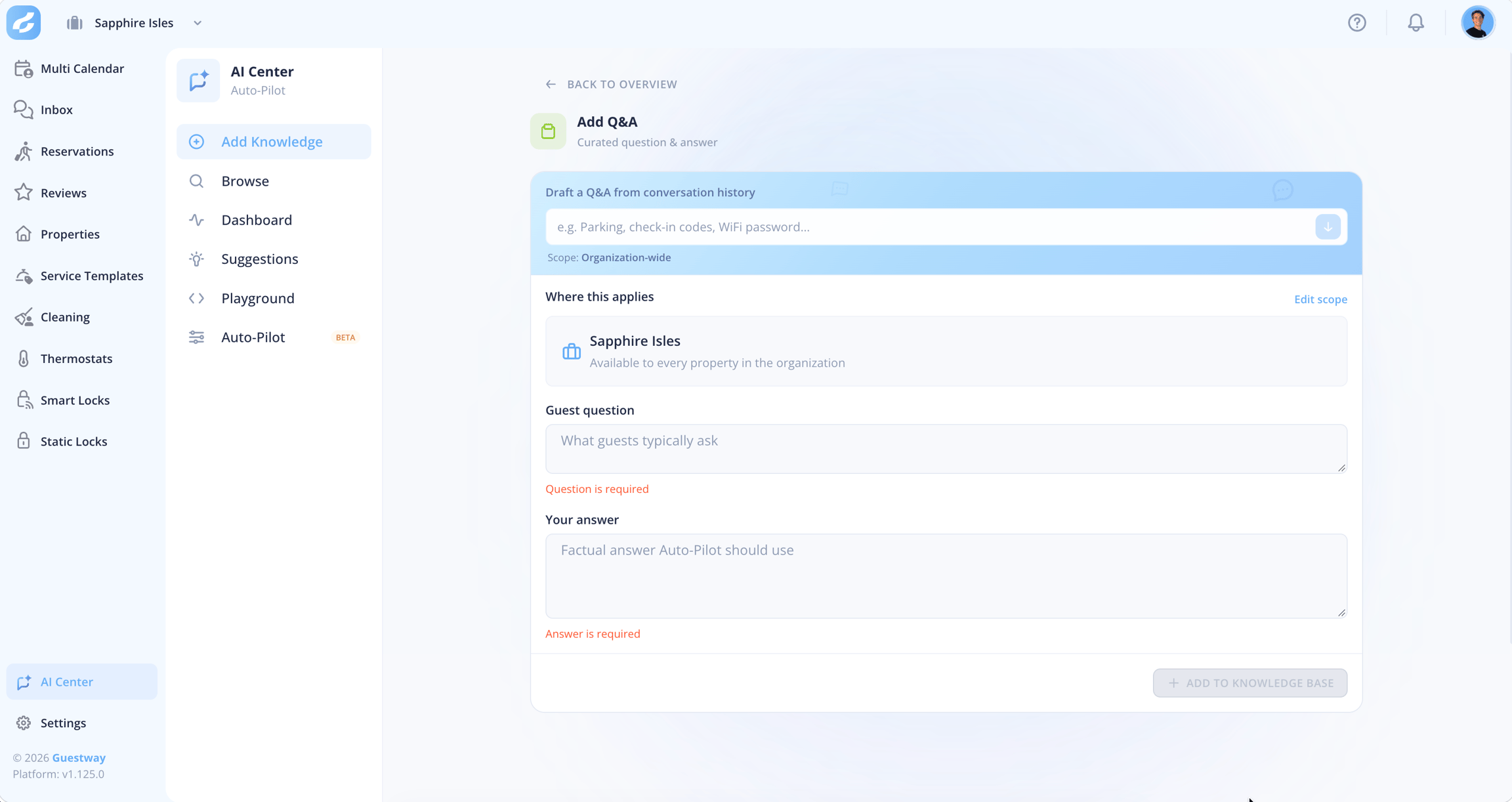
Draft a Q&A from conversation history
Fills in the question and the answer from how your team answered guests before, for a topic you type. Shows the conversations it found the knowledge in.
Needs enough past conversations about the topic, or it shows No draft found.
Where this applies
The properties the answer is for. The AI uses it only for guests staying at these properties.
The default is the whole organization.
Guest question
The question as a guest would ask it.
At most 200 characters.
Your answer
The answer the AI gives.
At most 4,000 characters.
Saved reply
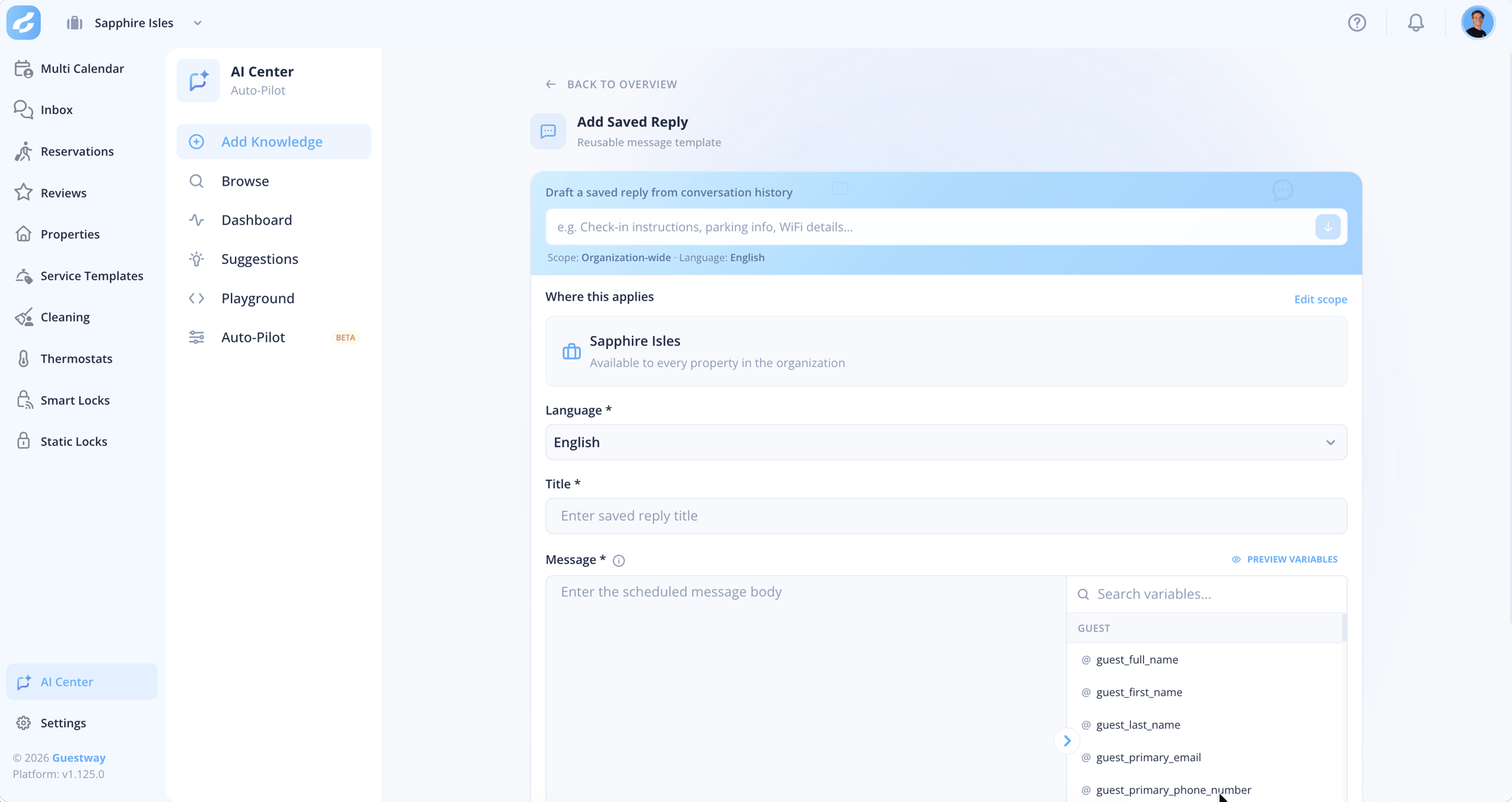
Draft a Q&A from conversation history
Fills in the content from how your team answered guests before, for a topic you type.
Needs enough past conversations about the topic.
Where this applies
The properties the saved reply is for.
The default is the whole organization.
Language
The language the saved reply is written in. With versions in several languages, the AI picks the one that fits the reply language.
Required.
Title
The name in the saved replies list.
Required. Guests do not see it.
Message
The text sent to the guest. @, or the list on the right, inserts placeholders such as the guest's name or the check-in time. Preview variables shows the message with real values.
None
Guest guidebook and internal document
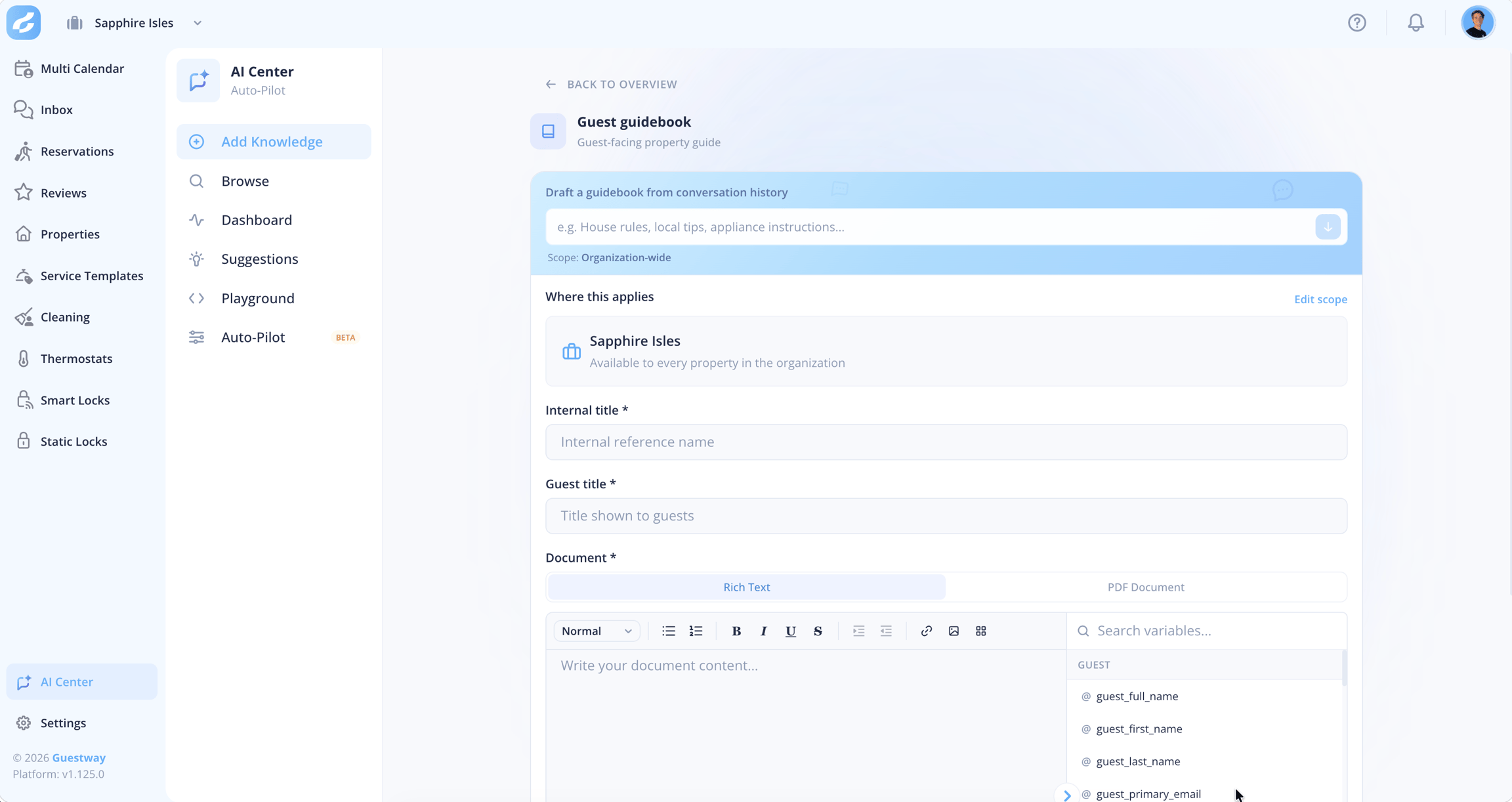
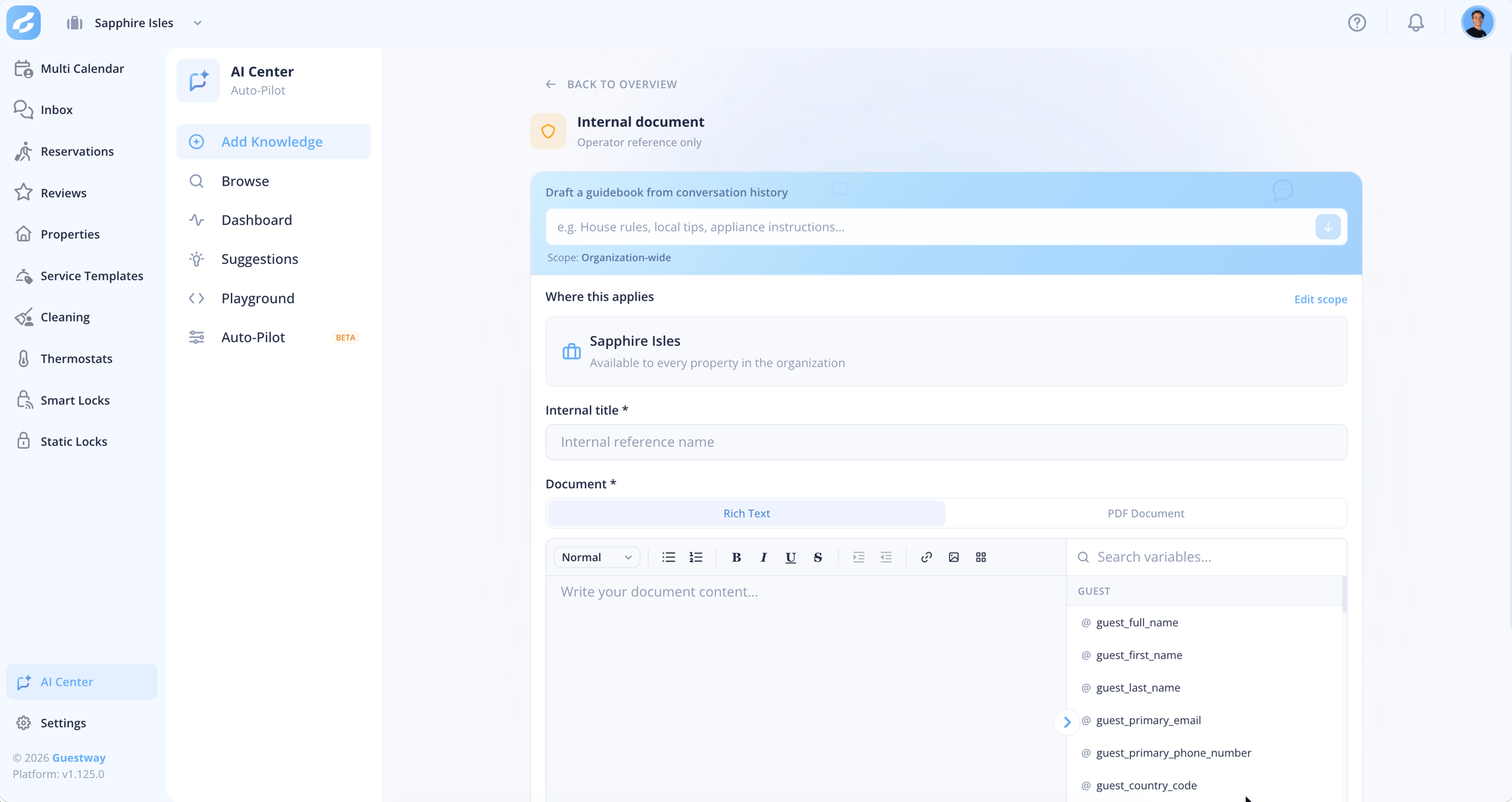
Where this applies
The properties the document is for.
The default is the whole organization.
Draft a Q&A from conversation history
Fills in the content from how your team answered guests before, for a topic you type.
Needs enough past conversations about the topic.
Internal title
The name your team sees.
With a PDF and no title, the file name is used.
Guest title
The title guests see.
Required.
Document
The content: Rich Text in the editor, with formatting, images and placeholders, or a PDF Document.
A PDF has at most 10 MB.
Browse
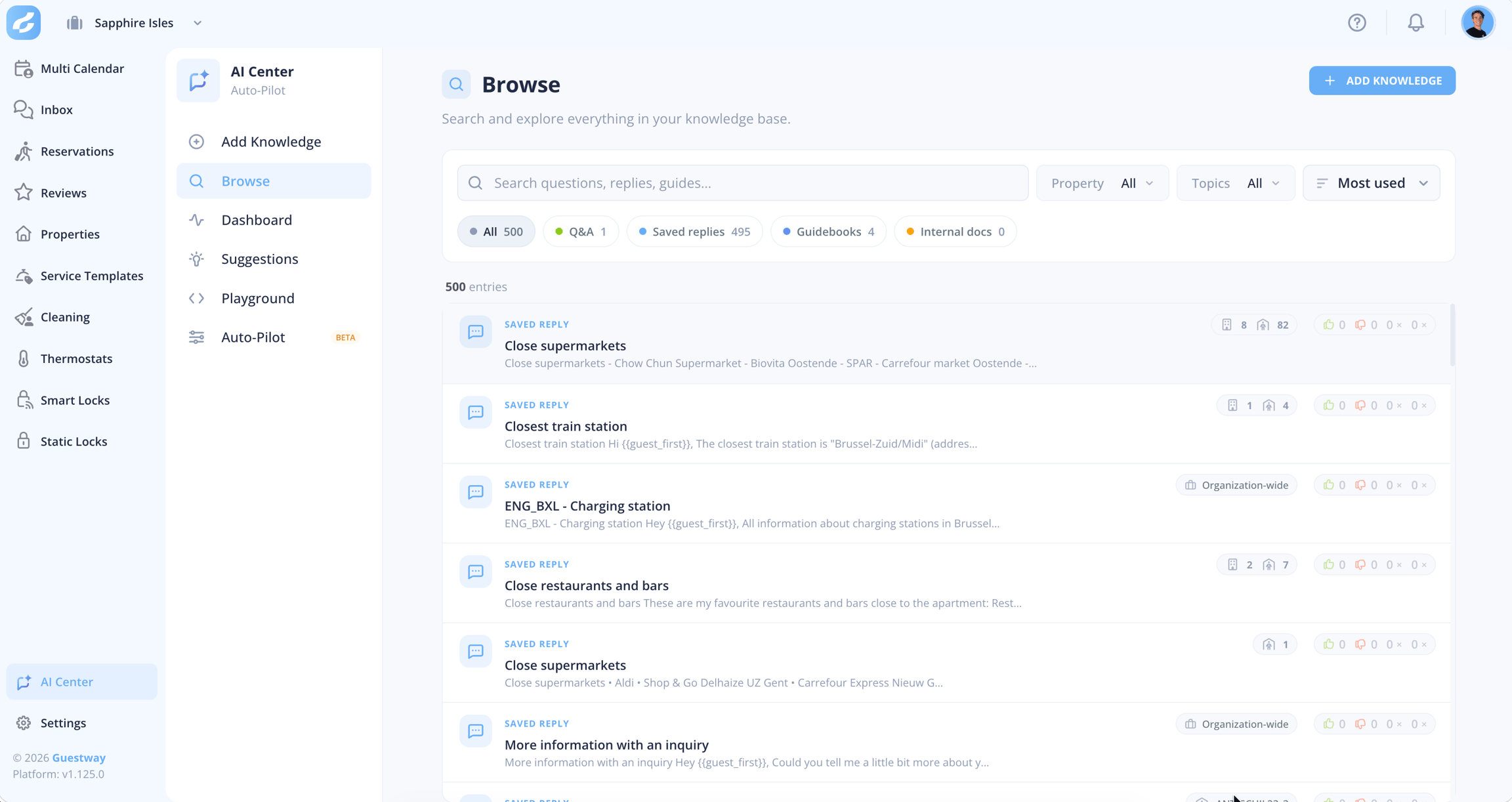
Tabs
All, Q&A, Saved replies, Guidebooks and Internal docs, each with a count.
None
Search
Finds key words, titles and text in the content.
None
Filters
Shows the entries of a property or a topic.
None
Sort
Recently updated, Recently created, Most used, Most dismissed, Most upvotes or Most downvotes.
The default is Most used.
Entry details
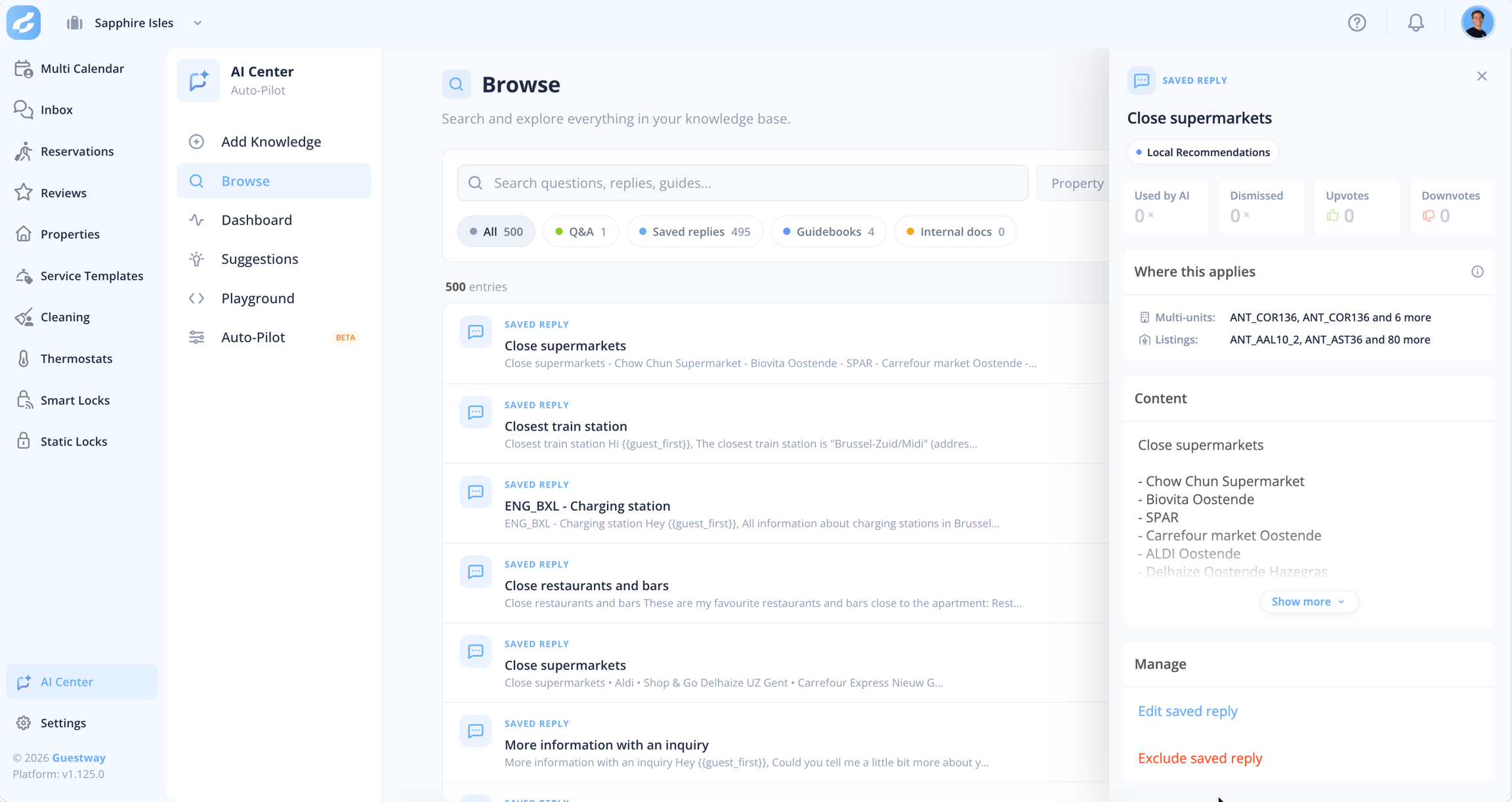
Used by AI
The AI used the entry, and your team sent the reply without correcting it.
Dismissed
The AI used the entry, but your team ignored the suggestion.
Upvotes
Your team marked a reply based on the entry as helpful.
Downvotes
Your team marked a reply based on the entry as not helpful.
The counters start again from zero when you edit an entry or change its scope.
Edit
Changes the content of the entry.
Only Q&As are edited in Browse. Saved replies, guidebooks and documents are edited where they were added.
Edit scope
Changes Where this applies.
None
Remove from knowledge base
Deletes the Q&A.
Only for Q&As.
Exclude saved reply
Stops the AI from using the entry. The saved reply, guidebook or document itself stays where it is.
Only for saved replies, guidebooks and internal documents.
After a change, the entry shows Processing …, then Processed. When processing is slow, it shows Changes are taking longer than expected.
Dashboard
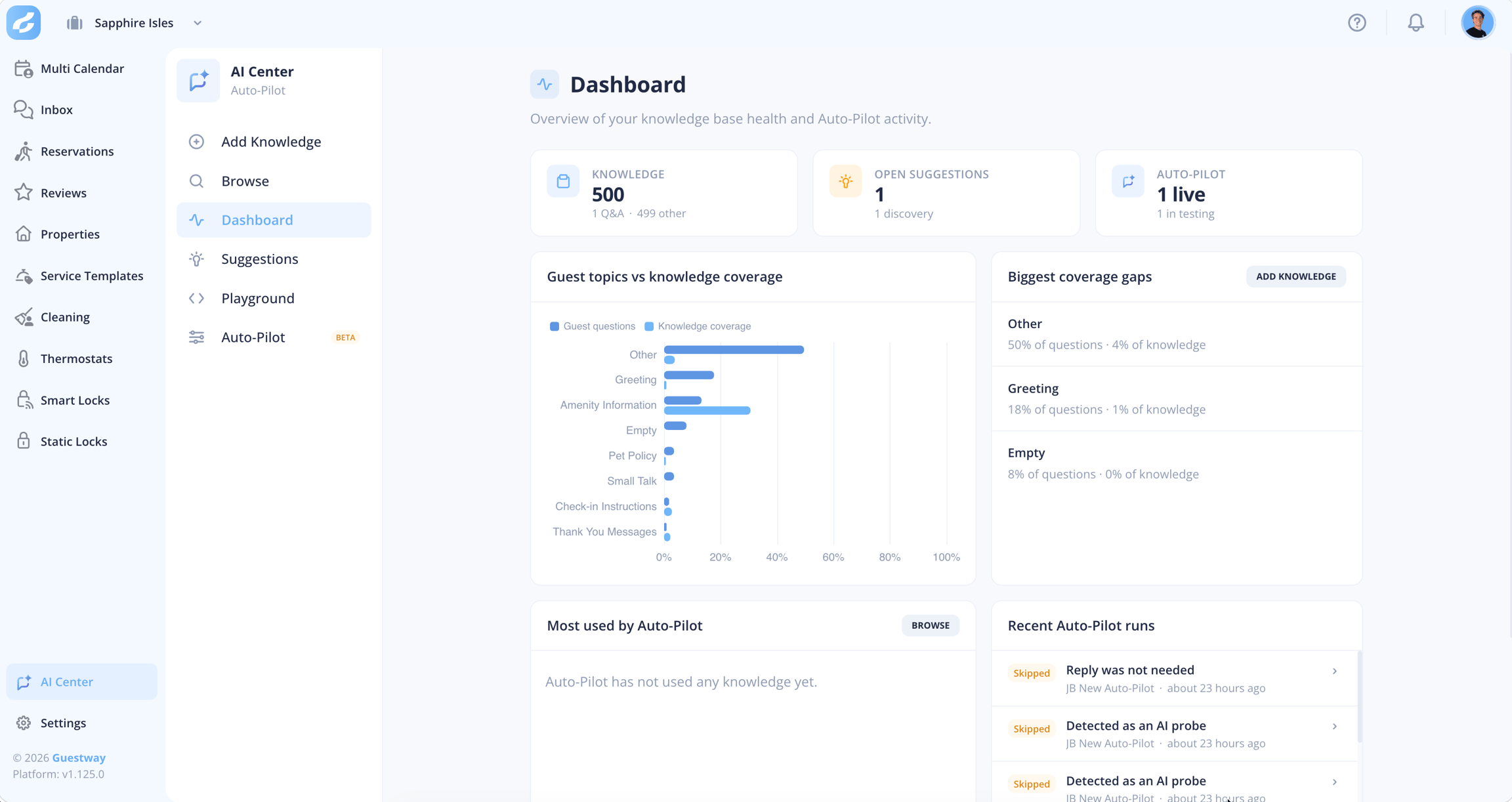
Knowledge
The number of entries, by type.
Open suggestions
The number of knowledge gaps found by the AI that wait for review.
Auto-Pilot
The number of Auto-Pilots that are live or in testing.
Guest topics vs knowledge coverage
What guests ask about, against what your knowledge covers.
Biggest coverage gaps
Topics that guests ask about a lot but your knowledge barely covers, for example 18% of questions but 2% of knowledge. Add knowledge opens the Add Knowledge tab.
Most used by Auto-Pilot
The entries that Auto-Pilot uses most.
Recent Auto-Pilot runs
The latest Auto-Pilot runs.
Suggestions
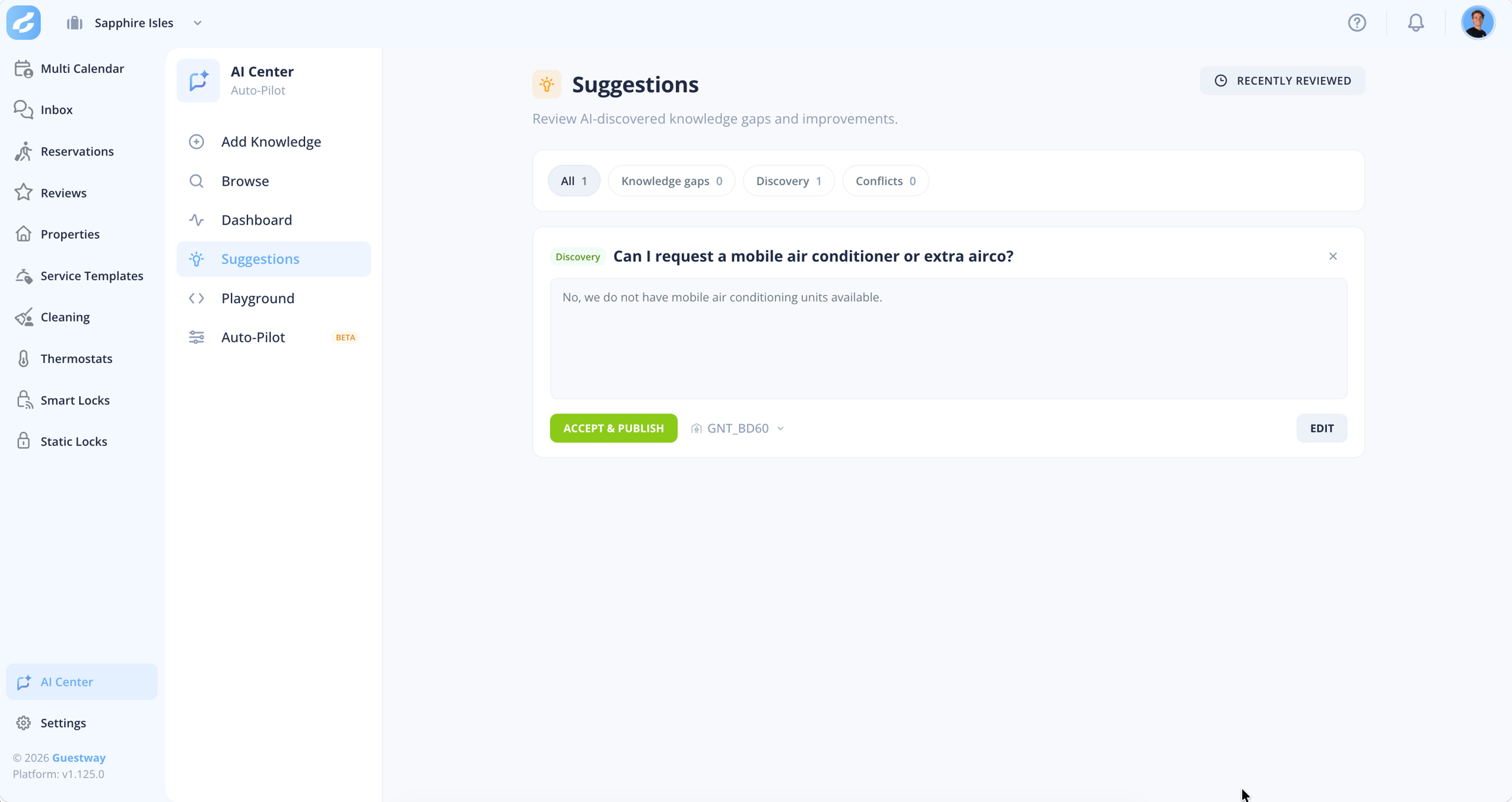
When the AI suggests a reply and your team sends something noticeably different, Guestway checks whether the team's reply has a reusable fact. If it has, the fact appears here as a proposed Q&A. One-off answers and personal or sensitive details are filtered out.
When suggestions wait for review, the AI Center item in the left-hand menu and the Suggestions tab show how many, up to 99+. You see this count only when you can accept and dismiss suggestions.
Knowledge gaps
A question the AI could not answer.
Discovery
New knowledge from how your team answered.
Conflicts
New information that contradicts an entry you already have.
Accept & publish
Adds the suggestion as a Q&A.
Accepting a conflict does not change the older entry.
Edit
Changes the suggestion and its scope before you accept it.
None
Dismiss
Removes the suggestion.
None
An empty list shows You're all caught up.
Playground
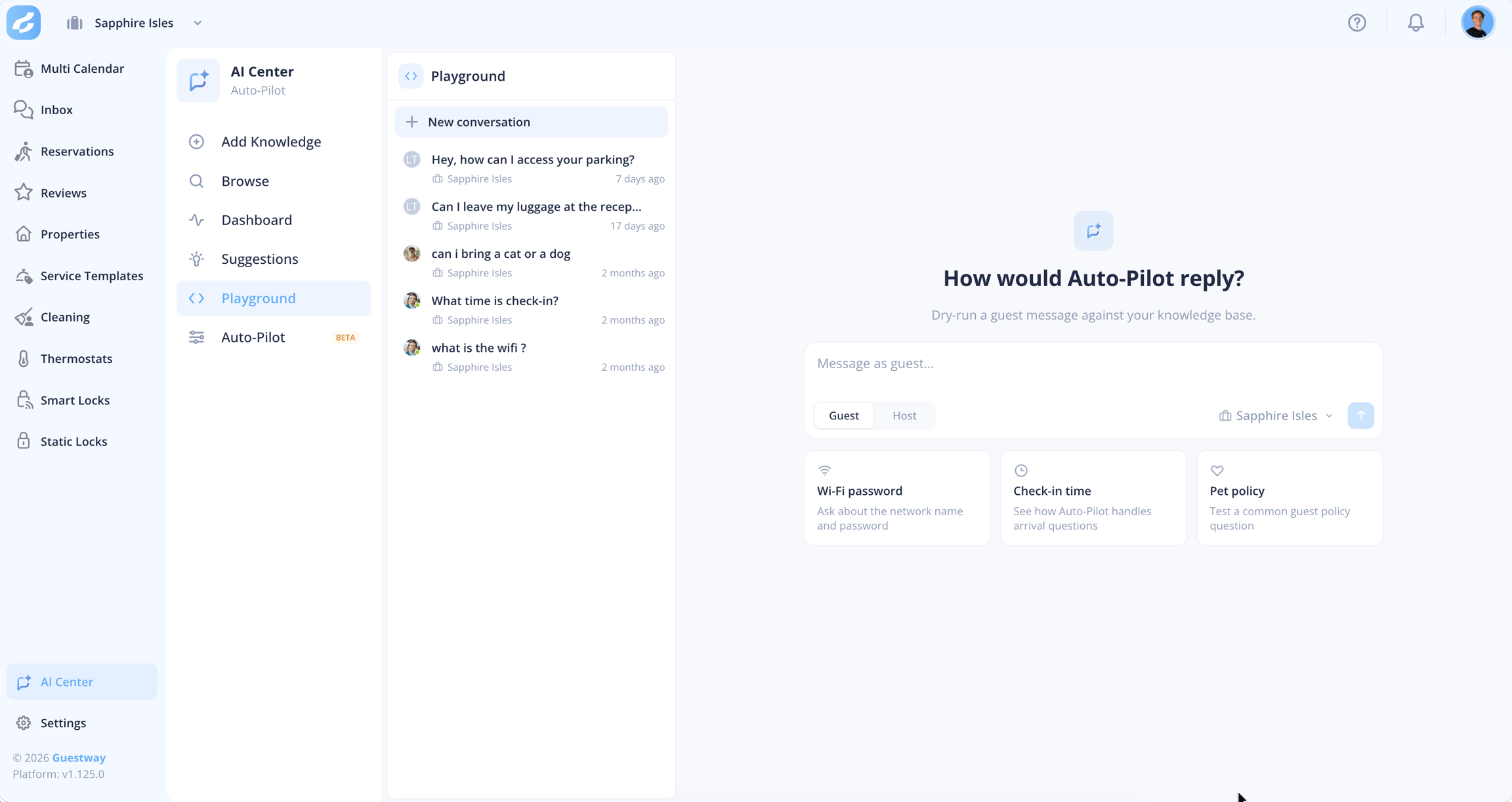
New conversation
Starts a test conversation with the AI.
Nothing is sent to a guest.
Conversation scope
What the conversation simulates: the whole organization, a complex, a multi-unit, a listing or a reservation.
Fixed for the conversation. A new scope needs a new conversation.
Guest / Host
Sets who you write as. Each guest message gets an AI reply.
None
Re-run Auto-Pilot from here
Runs the AI again from a message.
Later messages in the conversation are removed.
Each reply shows the knowledge it used, the fact-check result and the topics it detected. A Would send or Would not send label says whether Auto-Pilot would send it, with the reason when it would not.
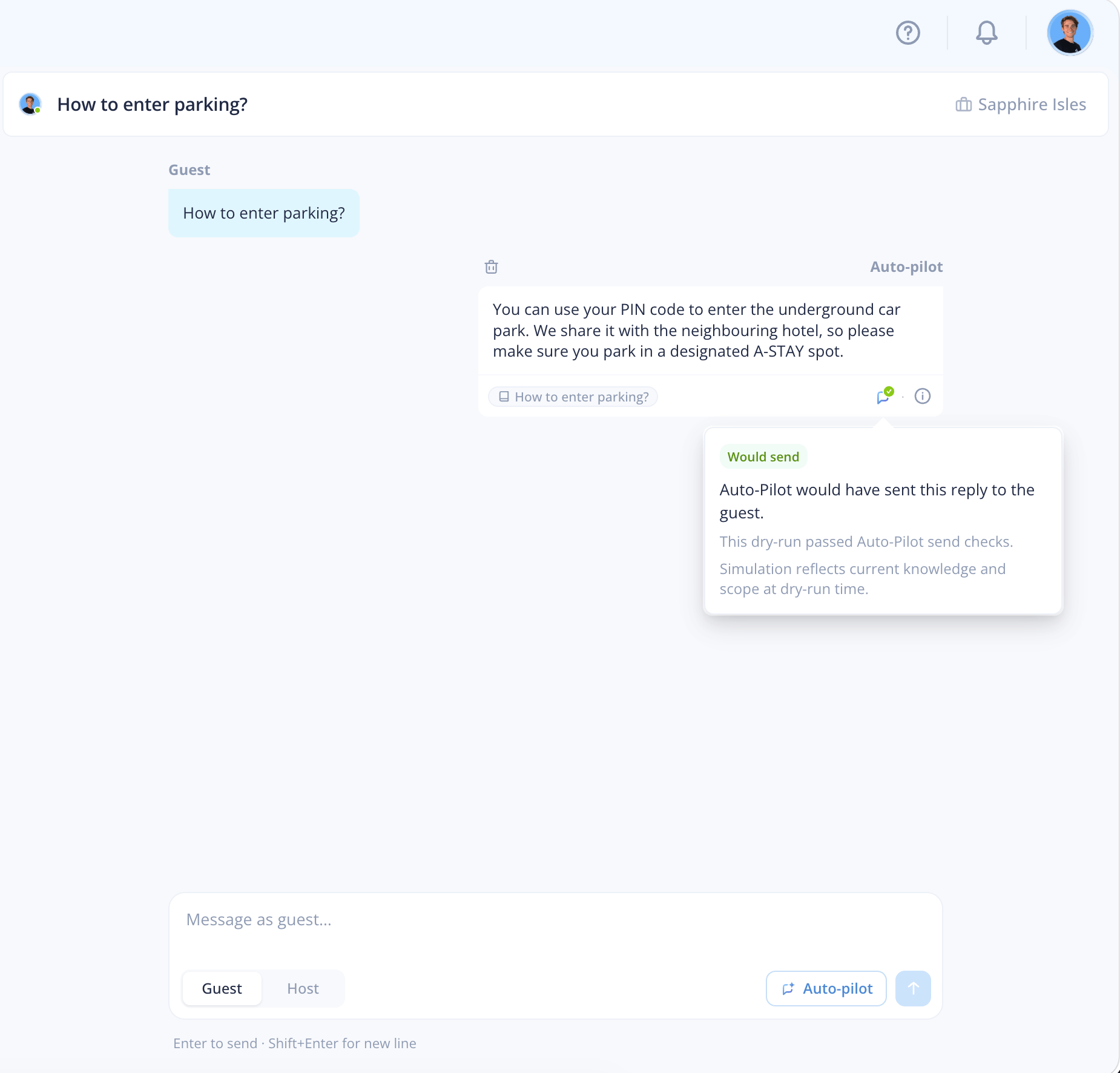
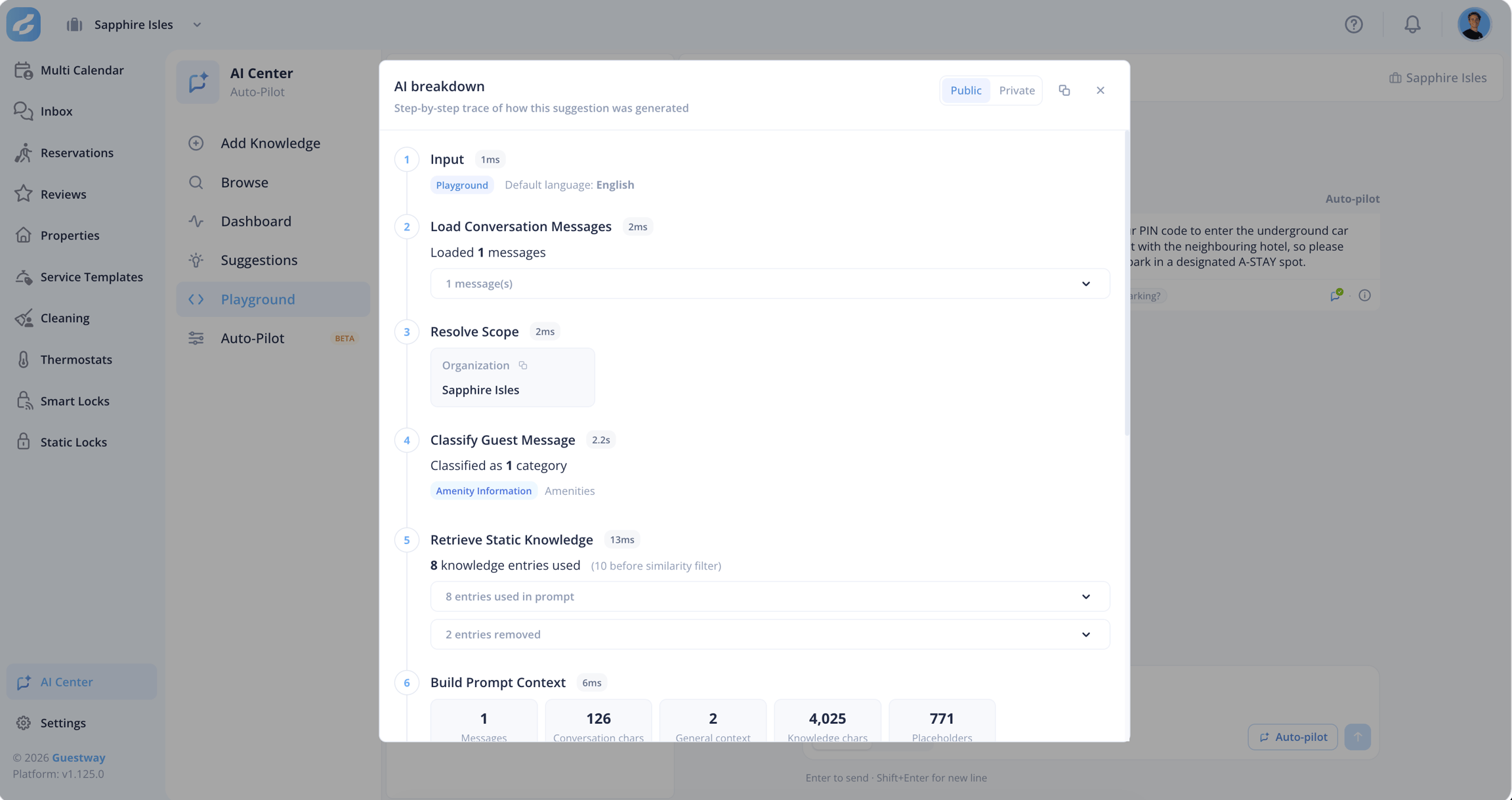
Playground conversations are shared with your team. They are deleted after 90 days without activity.
Auto-Pilot
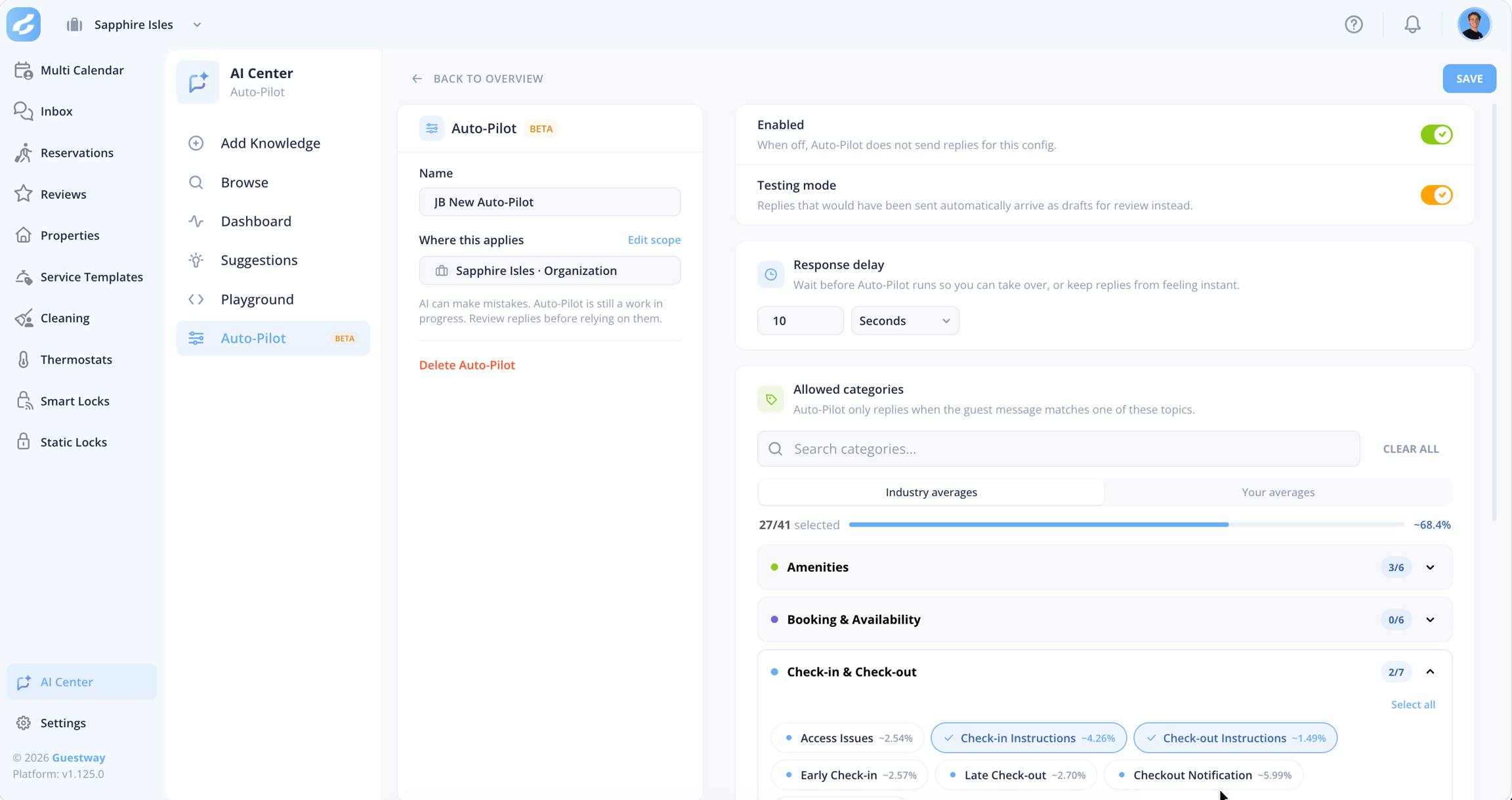
Auto-Pilot answers guests on its own, in your name, on the channel the guest wrote on. You can have several Auto-Pilots, each with its own properties and topics. Each Auto-Pilot is a card with its status (Enabled, Testing or Disabled), its topics, its scope and its message coverage.
Name
The name of the Auto-Pilot.
None
Where this applies
The properties it answers for.
None
Enabled
Turns the Auto-Pilot on or off. When off, it sends no replies.
None
Testing mode
Replies arrive as drafts in the conversation for your team to review, instead of being sent.
None
Response delay
How long Auto-Pilot waits before it replies. If a team member answers first, Auto-Pilot steps back. Several guest messages in a row get one answer.
From 10 seconds to 15 minutes.
Send threshold
How confident Auto-Pilot must be before it sends automatically, from More caution to More automation.
None
Allowed categories
The guest topics Auto-Pilot may answer, grouped as Check-in & Check-out, Amenities, Booking & Availability, Payments & Billing, Policies & Rules, Transportation & Logistics, Special Accommodations and more.
A message that touches one topic that is not allowed is left for your team.
Message coverage
Roughly what share of guest messages the chosen topics cover, based on industry averages or your own messages.
None
Auto-Pilot answers only new guest messages, only for properties in its scope and only on allowed topics. Its reply must also pass the fact check. Auto-Pilot can also be switched off in a single conversation.
Reply language
Get AI suggestion and Improve your message using AI in the inbox
The AI Default Language in the profile of the user.
Auto-pilot simulation in the inbox, and the replies in the Playground
The AI Default Language in the profile of the user. It can be another language than the one of the real Auto-Pilot replies.
Draft a Q&A from conversation history
The AI Default Language in the profile of the user. For a saved reply, the Language of the saved reply.
Auto-Pilot replies
The AI language of your organization, English unless it was changed. You cannot change it in Guestway. Contact Guestway support to check or change it.
Q&As that the AI proposes in Suggestions from the replies of your team
The AI language of your organization.
The AI writes the whole reply in this language, also when the guest or your knowledge uses another language. It translates facts from your knowledge into this language when needed.
Auto-translate outgoing messages in the inbox translates a reply into the language of the guest before it is sent. See Unified AI inbox.
Related
Analytics: the Auto-Pilot tab shows how Auto-Pilot performs over time.